Window Management API: Multi-Screen Boundaries
Use Window Management with explicit permission, activation, topology-change handling, and a privacy-safe single-screen fallback.
BotBrowser Team
Want the structured docs for Platform?
This article lives in the editorial library. For step-by-step setup, reference material, and ongoing updates, jump into the docs section.
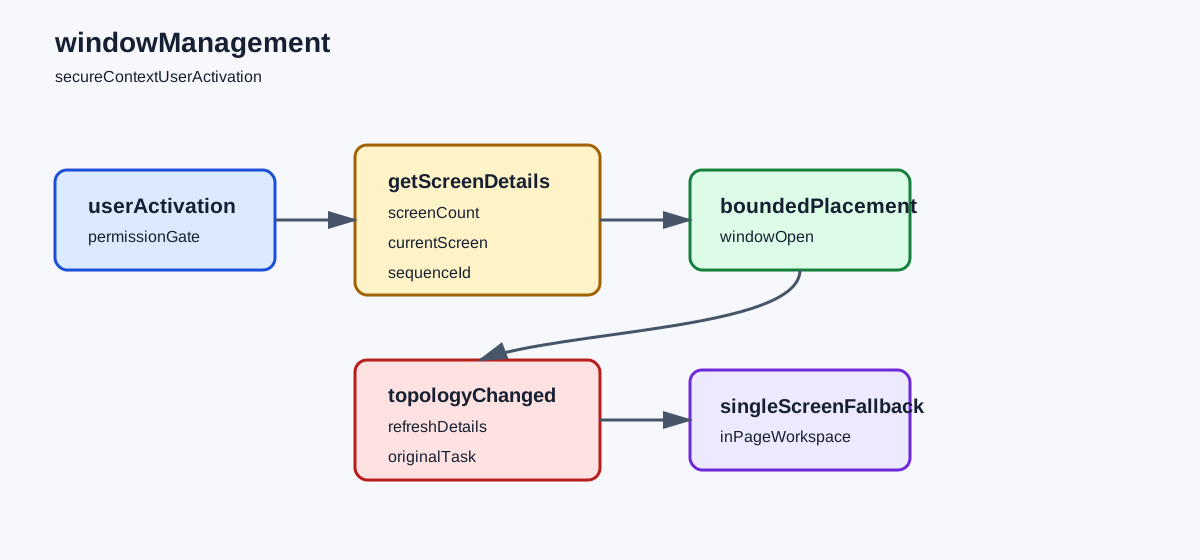
The Window Management API lets a web application reason about more than one available screen and choose a window placement after the browser permits that access. It is a controlled capability, not a monitor inventory or a location signal. Screen geometry can change when a display is connected, removed, locked, scaled, or reconfigured, and a requested position can still be rejected or adjusted by the operating system. BotBrowser controlled contexts can run an authorized page that requests access from a declared user action and records visible screen and placement outcomes when the runtime exposes the API; BotBrowser cannot manufacture a second physical display, grant permission outside the browser flow, guarantee native placement, or infer a user's location from geometry. For adjacent responsive boundaries, compare screen and viewport properties and Screen Orientation API experiences.
TL;DR
- Feature-detect
getScreenDetails()and request access from a visible user action in a secure context. - Treat
ScreenDetails.screens,currentScreen, and change events as a temporary topology snapshot. - Clamp requested coordinates and sizes to available work areas, then verify the resulting window state.
- Keep a single-screen or in-page layout usable when permission, support, or topology is unavailable.
- Do not turn screen geometry, count, or arrangement into a user, device, or location identity.
Contents
- Request screen details at a user boundary
- Model topology and placement as changing state
- Keep geometry separate from privacy and accessibility
- Verify placement with a bounded fixture
- Practical conclusion
Request screen details at a user boundary
The Window Management specification defines Window.getScreenDetails() and the ScreenDetails model for observing available screens. The MDN Window Management API reference describes the browser-facing surface and its availability. A page should feature-detect the method, run in a secure context, and request the window-management permission only when a user-visible feature needs it.
The Chrome Window Management guidance presents multi-screen window placement as an opt-in workflow. Treat it as a capability example, not a promise for every browser or desktop shell. A permission prompt can be dismissed, denied, or unavailable under policy. The application must preserve a useful one-window experience in all three cases.
Request access from a button or keyboard command that names the action. Do not ask at page load merely because multiple screens might be useful. The browser can associate permission with a user decision, while a page-load request gives the person no immediate explanation of the value. Keep the activation boundary close to the call and do cheap local checks before it. If the call is delayed by unrelated asynchronous work, the browser may treat it as outside the user's activation.
Use a small capability record rather than copying every screen field into analytics:
const topologyState = {
  phase: 'idle',
  outcome: 'unavailable',
  screenCount: 0,
  sequence: 0,
};
screenCount is a local decision input, not a profile attribute. sequence lets the application ignore a stale placement result after a topology event or route change. Do not store device names, full coordinate histories, or a screen list alongside an account identifier. If support needs a reproduction record, keep a short synthetic fixture id and a bounded outcome class.
Permissions do not replace user intent. A person may grant access and still expect the application to ask before opening a new window. The placement control needs an accessible name, keyboard operation, focus behavior, and a visible explanation of which window will move. A screen reader user or a person on a remote desktop should be able to continue with the single-window path. Never make a multi-screen layout the only route to a required action.
Model topology and placement as changing state
ScreenDetails.screens represents the screens visible to the page at the time of the snapshot. currentScreen identifies the screen associated with the current window. The set can change after a display connection, removal, resolution change, scale change, or operating-system transition. Listen for the documented change events when the feature is active, but treat every event as a reason to refresh state rather than as a guarantee that a previous placement remains valid.
Store a stable application key for a target only for the duration of the placement decision. A screen object can become stale after topology changes. Before opening or moving a window, select a fresh candidate, calculate a bounded work area, and verify the result after the browser and operating system apply it. If the candidate disappears, keep the existing window visible and return to the fallback instead of opening at an arbitrary coordinate.
Placement is a request, not an order. window.open() may be blocked by popup rules, may clamp dimensions, or may be adjusted by the window manager. A user can move the window after the application opens it. Treat the returned window reference and its visible state as observations. Do not claim that a requested left, top, width, or height proves the physical monitor layout.
Use an explicit policy for target selection:
| Outcome | Placement action | Visible contract | Recovery |
|---|---|---|---|
| API missing or permission unavailable | Stay in the current window | In-page layout remains complete | Offer the feature again only from a new action |
| One current screen | Use the current work area | Explain that no extra window is needed | Keep the single-screen path |
| Several screens and fresh details | Choose a bounded candidate | Tell the user which panel will open | Verify the resulting window and refresh on changes |
| Candidate disappears or details change | Keep the existing window | Avoid moving content unexpectedly | Select again from fresh details |
| Popup or placement rejected | Keep the current task visible | Explain that the separate window was not opened | Provide an in-page continue action |
Clamp coordinates to availLeft, availTop, availWidth, and availHeight for the selected screen. Reserve a margin for browser chrome and ensure the requested size is large enough for the required controls. A layout that technically fits a work area but hides its close button is not a successful placement. Keep a minimum usable size in application configuration, and expose a way to bring the content back into the current window.
Do not use a screen count as a performance or identity limit. Two screens can belong to one shared workstation, a virtual desktop, a remote session, or an accessibility setup. A single screen can expose a large logical work area through scaling. The API gives the page an operational hint for a window decision; it does not tell the page who is present or where they are.
Treat the current screen as a preference for this window, not as a permanent home. A person can move the browser, change the primary display, or reconnect a dock while the application is open. When a topology event arrives, keep the current task in place, refresh details, and offer a deliberate “reopen workspace” action rather than moving a window under the person's pointer. This is both a usability rule and a privacy rule: a page should not turn a transient desktop arrangement into an automatic behavioral profile.
Window features also need a clear ownership model for cleanup. The page owns listeners for screenschange and currentscreenchange, the child window owns its own document lifecycle, and a controller or sequence record owns the relationship between them. Remove listeners when the feature is disabled, ignore events for a closed child, and do not let a stale callback reopen a window after navigation. A small lifecycle record is easier to review than a stream of raw screen objects.
A useful test asks what the person can still accomplish after every branch. If the second window opens, the user can continue in either window and can close the extra one. If it fails, the original page still exposes the workspace and its status. If permission is later revoked, the page stops requesting details until the user asks again. These outcomes should be part of acceptance criteria, not an implementation detail hidden in a helper.
Document the chosen placement as an application preference only while it remains useful. A dashboard may prefer the largest available work area, while a presentation tool may prefer the current screen so the speaker keeps controls nearby. Neither preference should override a person's move or require the same arrangement on the next visit. Offer a reset action that returns to the current window, and make that action available before any permission request. The best multi-screen behavior is a convenience layered on a complete single-screen task.
Topology changes can race with user actions. If the person clicks “open on the right” while a display is being removed, the selected object may no longer represent an available work area. Give each placement request a sequence number, cancel or supersede the old request, and keep the current result visible until a new window is confirmed. Never close the original window merely because a secondary placement failed.
Keep geometry separate from privacy and accessibility
Screen geometry can be sensitive in combination with other signals. A rare arrangement of work areas, scale factors, and available bounds can contribute to a device fingerprint even when no one field identifies a person. Keep geometry in memory for the placement decision, reduce it to an outcome such as placed, single-screen, or fallback, and discard the snapshot when the feature ends. Do not send raw coordinates to analytics by default.
If a support workflow needs to reproduce a layout, use synthetic categories such as one-screen, two-screen-left, or topology-changed. Do not retain monitor labels, serial numbers, user names, full desktop coordinates, or a history of every change. A short-lived diagnostic can include a browser release and fixture id, with an explicit deletion time. The fact that a coordinate is not a name does not make an indefinite coordinate history harmless.
Separate window placement from display calibration. CSS pixels, device-pixel ratio, zoom, color management, and operating-system scaling affect how content appears. A window positioned inside a reported work area does not prove that a physical bezel, color profile, or viewing distance matches another host. For visual matching, ask the person to confirm the rendered result and keep that confirmation separate from the topology record.
Accessibility must survive both topology branches. A secondary window needs a title, focus management, keyboard navigation, and a way to return to the originating window. Announce that a new window opened and where the task is now located. If the user denies permission or the popup is blocked, keep focus on the original control and expose an in-page path. Do not require drag-and-drop across screens to complete a task, and do not hide essential status in a window that may never open.
Workers and embedded frames add ownership boundaries. The top-level page that owns the visible control should request permission and decide whether to open a window. A worker may calculate a layout suggestion, but it should receive a bounded snapshot or outcome, not permission authority. An iframe should not receive the complete screen list merely because it is embedded. Pass only the placement result required by an explicit, origin-checked contract.
BotBrowser can exercise an authorized page and compare visible permission, screen-count, placement, and fallback outcomes in a controlled context when the runtime exposes Window Management. It cannot manufacture a second display, force the browser permission, guarantee native window-manager placement, or infer a user's location from coordinates. Keep this limitation beside the test record so a controlled layout result is not treated as hardware inventory or location evidence.
Verify placement with a bounded fixture
Use a synthetic page with one “open workspace” button, an in-page panel, and a compact result record. The fixture should request details only from the button action, select a fresh candidate, clamp its work area, and verify that the new window is usable. It must keep the original page working if any step is unavailable. Do not enumerate unrelated windows or retain a full coordinate history.
The fixture makes permission, topology, and placement ownership explicit:
const record = { phase: 'idle', outcome: 'unavailable', screenCount: 0, sequence: 0 };
let details;

async function openWorkspace() {
  record.sequence += 1;
  record.phase = 'pending';
  try {
    if (!window.isSecureContext || !('getScreenDetails' in window)) {
      record.outcome = 'unavailable';
      return showInPageWorkspace();
    }
    details = await window.getScreenDetails();
    const screens = [...details.screens];
    record.screenCount = screens.length;
    const target = screens.find(screen => screen !== details.currentScreen) ?? details.currentScreen;
    if (!target) return showInPageWorkspace('no-screen');
    const width = Math.max(640, Math.min(960, target.availWidth));
    const height = Math.max(480, Math.min(720, target.availHeight));
    const child = window.open(
      '/workspace',
      'workspace',
      `left=${target.availLeft},top=${target.availTop},width=${width},height=${height}`
    );
    record.outcome = child ? 'requested' : 'popup-blocked';
  } catch (error) {
    record.outcome = error?.name === 'NotAllowedError' ? 'permission-denied' : 'rejected';
  } finally {
    record.phase = 'idle';
  }
}
The fixture does not create a display or force a window manager. A harness may provide a declared synthetic topology, but it must label that topology as harness data. The useful assertions are that the request follows a visible action, the fallback remains complete, coordinates are clamped, and a failed child does not remove the original task.
Capture a compact matrix for each run:
| Fixture case | Expected outcome | What it proves | What it does not prove |
|---|---|---|---|
| Constructor, secure context, or permission unavailable | unavailable or permission-denied, in-page panel visible | Capability and fallback ownership | A physical display is missing |
| One current screen | no-screen or single-screen result | The one-window path remains usable | That the host has no virtual display |
| Fresh multi-screen details | requested with bounded geometry | Candidate selection and size limits | That the OS placed the child exactly |
| Topology changes before opening | topology-changed, original page retained | Stale details do not move the task | Which process caused the change |
| Popup or placement rejected | popup-blocked or rejected, fallback visible | Failure is visible and reversible | A browser defect or user intent |
Record only browserVersion, runtimePath, screenClass, outcome, geometryBounded, fixtureId, and sequence with synthetic, bounded values. If support needs raw coordinates, make that a short diagnostic with explicit access and deletion. Otherwise, screenClass=two-screen is enough to compare policy behavior. Keep the diagnostic record separate from account analytics, and expire it when the placement question is resolved.
Repeat the matrix after a browser release, display connection, scale change, permission-policy change, window-layout update, or fallback change. Compare the first visible difference: method availability, permission, screen count, candidate selection, popup result, or child usability. A changed first field narrows the investigation without claiming that the Window Management API caused a rendering or operating-system regression.
Do not use this fixture to rank devices, reconstruct a desktop, infer a location, or prove that another user's screen has a particular arrangement. The bounded question is whether this authorized page can offer a clear multi-screen option while preserving the same task when access or placement is unavailable.
Public sources
- Window Management specification
- MDN: Window Management API
- Chrome for Developers: Window Management
- BotBrowser: Advanced features
Practical conclusion
Request Window Management from a visible action, treat screen details as a temporary snapshot, clamp and verify placement, and keep the single-screen path complete. Retain only bounded outcomes rather than a topology history, and separate geometry from identity, location, and calibration claims. Re-run the fixture after browser, display, permission, or layout changes and investigate from the first visible state that moved.
This article is part of the guide: Web Platform Surfaces: A Consistency Review Map
Related Articles
Presentation API: Display and Session Boundaries
PlatformDocument Picture-in-Picture: Permission and Window Boundaries
PlatformEyeDropper API: User Activation and Color Privacy
FingerprintScreen and Window Fingerprinting: Display Tracking
FingerprintScreen and Viewport Properties for Responsive Design
PlatformScreen Wake Lock API: Lifecycle and Privacy Boundaries
Take BotBrowser from research to production
The guides cover the model first, then move into cross-platform validation, isolated contexts, and scale-ready browser deployment.