Mobile Viewport Resize Events: Order, Debounce, and Layout
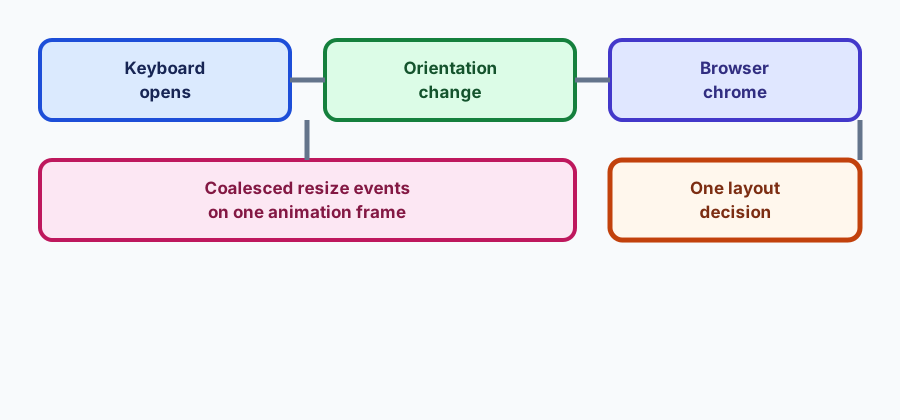
The keyboard, orientation changes, and browser chrome each resize the viewport. Order the events, coalesce them on one frame, and decide layout once per change.
BotBrowser Team
Want the structured docs for Fingerprint?
This article lives in the editorial library. For step-by-step setup, reference material, and ongoing updates, jump into the docs section.
On a desktop, a viewport resize is one event. On a phone it is a sequence: the on-screen keyboard opens, the browser chrome slides away, the device rotates, and each of those produces a different event with a different geometry. That sequence is what decides whether a layout holds, and it starts where the screen and viewport properties guide ends: after you know which property answers which question, the next problem is ordering the events that change them.
BotBrowser can load an owned page at a declared viewport size and device pixel ratio in a controlled context and record what the page observes; it cannot simulate every keyboard animation a real phone produces, cannot make a mobile browser report a different chrome height on demand, and does not replace testing on the device classes your users actually hold.
TL;DR
- Treat every mobile viewport change as a sequence, not a single resize.
- Read
window.visualViewportfor the visible area andwindow.innerWidthfor the layout area, and record both. - Coalesce resize callbacks onto one animation frame before measuring.
- Decide the layout once per change and write down what the page observed.
Contents
- What changes when the phone changes
- Order the events
- Measure on one frame
- Keep a resize record
- Test the sequence, not the state
- Keep orientation and zoom separate
- Conclusion
What changes when the phone changes
A mobile browser has more than one viewport, and they move at different times. The layout viewport is the area the page lays out against, and it changes when the browser chrome appears or disappears. The visual viewport is the part a user can actually see, and it also changes when the on-screen keyboard opens, when the user pinch-zooms, and when a scroll gesture uses more space than the layout viewport.
window.innerWidth and window.innerHeight report the layout viewport in CSS pixels. window.visualViewport reports the visual viewport with width, height, offsetTop, offsetLeft, scale, and pageTop. Each of those numbers can change independently, which is why a layout that reacts to one of them and assumes the others are constant breaks in a way that looks intermittent.
window.screen is a third view where the two disagree: the screen reports the device's available display area, which on a phone may not change at all while the viewport changes several times during one keyboard interaction. Reading screen.height to decide layout is a common source of layouts that are correct on load and wrong after a rotation.
Device pixel ratio is a fourth value, and it can change without a resize event. A browser can adjust the ratio when a page moves between displays or when the user changes text scaling. A canvas sized once at load will look correct until either of those happens, and then it will look blurred or over-sharp without any resize listener firing.
Order the events
A keyboard opening on a phone typically changes the visual viewport first, and the device pixel ratio policy covers the ratio changing without a resize, then the layout viewport, then the browser may scroll the focused element into view. The exact order is not guaranteed across browsers, and that is the point: a handler that assumes a fixed order will occasionally read a stale value for one of the two viewports.
The reliable approach is to listen to both window.visualViewport resize and the window resize, and to treat the pair as one signal rather than two. Register listeners on visualViewport for resize and scroll, and on the window for resize and orientationchange, then route them through the same scheduling function. That function measures once, on the next frame, using whichever values are current at that moment.
Orientation change is the case most likely to be missed. On many phones the window resize fires before the orientation media query flips, so a handler that reads matchMedia('(orientation: portrait)') inside the resize callback can see the previous orientation. Reading orientation on the next frame, from the visual viewport's width and height ratio, avoids depending on the timing of the media query update.
Browser chrome animation is a source of rapid resize events. When the address bar slides away on scroll, several resize events can fire within a few hundred milliseconds, each with a slightly different height. Measuring and laying out on each of them causes visible layout thrash on a mid-range device. Coalescing them onto a single frame is not an optimization for slow devices only; it is what keeps the layout from following the animation and then jumping back.
Zoom is the case where the visual viewport changes while the layout viewport does not, and where visualViewport.scale is the value worth recording. A fixed-position element that uses position: fixed stays anchored to the layout viewport, which during zoom can put it off-screen relative to what the user sees. An element that needs to follow the visible area has to compensate with visualViewport.offsetTop and offsetLeft rather than assume fixed positioning follows the finger.
Measure on one frame
The scheduling pattern is short enough to write once and reuse. Keep a pending flag, register a callback with requestAnimationFrame if none is pending, and inside the callback clear the flag and read every value the layout depends on in the same tick. That guarantees one measurement per frame no matter how many events arrived between frames.
Read all dependent values together: visual viewport width, height, offsets and scale, layout viewport width and height, device pixel ratio, and the media query result for the breakpoints the page uses. Reading them from a single callback means they describe the same moment. Reading them from separate event handlers means a value can be from before the change while another is from after.
Do the layout decision from those values, not from the event that triggered it. A callback that receives an event and branches on event.type produces one code path per source and drifts as browsers change. A callback with no event parameter and one measurement function produces one path and one record, which is easier to test and easier to explain when a layout is wrong.
Debounce with a frame, not with a timer. A timer-based debounce of a hundred milliseconds hides the layout change for a tenth of a second, which on a keyboard animation is visible as the input jumping after the keyboard settles. A frame-based coalesce follows the change at display rate while still merging bursts within the same frame.
Cancel a pending frame when the page hides. A background tab can queue a callback that runs when the tab becomes visible again with a geometry that has changed twice since; running the measurement then is correct, but running the layout animation at that moment is not. Check document.visibilityState before starting anything visible.
Keep a resize record
Know which number you are reading
Four numbers describe a phone viewport, and they disagree on purpose. window.innerWidth is the layout viewport in CSS pixels, and it changes when the browser chrome hides. window.visualViewport.width is the visible width, and it changes with pinch zoom. window.screen.width is the display, and it usually does not change at all. window.devicePixelRatio is the ratio between CSS pixels and physical pixels, and it can change without any resize.
A layout that mixes them without saying so produces bugs that survive every screen size you test; the screen and viewport properties guide names which property answers which question. A modal centered with innerHeight jumps when the keyboard opens, because the layout viewport may not shrink in the same frame. A sticky footer positioned from screen.height sits in the wrong place on every device whose chrome height differs from the screen's, which is most phones.
The discipline is to name the number in the code. A helper such as readViewportMetrics() that returns an object with layoutWidth, layoutHeight, visualWidth, visualHeight, visualOffsetTop, visualOffsetLeft, scale, and dpr makes the source of each value explicit and gives the record one shape. Two callbacks reading innerHeight directly and comparing results is how a disagreement between the two viewports becomes a bug report nobody can reproduce.
Handle the keyboard explicitly
The on-screen keyboard is the single most common source of mobile layout complaints, and it is also the one that previews least accurately. A phone may resize the layout viewport, overlay the visual viewport, or pan the page, and different browsers on the same device family choose differently. The page cannot control which strategy the browser picks.
What the page can do is decide what should happen in each case. If the focused input must remain visible, the decision is either to scroll it into the visual viewport or to keep the layout fixed and accept that part of it is covered. Write the decision down and implement one path, rather than letting the browser's choice decide the layout for you.
Measure the keyboard from the visual viewport rather than guessing its height. window.visualViewport.height compared with window.innerHeight gives an estimate of the overlapped area on browsers that overlay rather than resize. Treat it as an estimate: the difference includes the browser chrome and any scroll offset, so a page that uses it as an exact keyboard height will be wrong by the chrome height.
Handle the keyboard closing as carefully as opening. A page that scrolls the input into view on open and never restores the scroll position leaves the user looking at a different part of the page after they dismiss the keyboard. Record the scroll position before the change and restore it only if the user has not scrolled in the meantime.
Design the resize handler for the record
A resize handler is small, and its shape decides how much a later reader can learn from it. Keep the measurement, the decision, and the record in three named functions. The scheduler calls measurement once per frame, passes its result to the decision function, and appends the outcome to the record. When a layout is wrong, the reader can run the decision function with a recorded measurement and see whether the bug is in the values or in the decision.
Cap the record. A page that resizes during a long scroll can produce hundreds of frames, and a record that grows without bound is a memory leak with a diagnostic hat. Keep the last twenty entries and a count, which is enough to see a burst and small enough to attach to a bug report.
Include the trigger names, the metrics, and the outcome in each entry. The trigger names show what the browser delivered, the metrics show what the page read, and the outcome shows what the page decided. A record with all three answers the question a support report asks, and a record with only the outcome does not.
Write the record to a place a test can read. Exposing the last entries on window.__viewportRecord in development builds is enough for a controlled test to assert on the sequence, and it costs nothing in production when the code is behind a build flag.
The record that makes a resize bug diagnosable is a short sequence, not a single snapshot. Log the values on each frame where the page actually laid out, with the trigger names that arrived since the previous frame. That tells you whether the keyboard change produced one layout or five, and whether orientation arrived before or after the width flipped.
Include the trigger names in the record. A frame with resize,resize,visualViewport-resize is a different event than a frame with only orientationchange, and the difference is what distinguishes a chrome animation from a rotation. Keep the names in the order they arrived within the frame so a later reader can see the burst.
Record the outcome as a category rather than a pixel value. "Input remains visible", "footer stays pinned", "canvas resized to device pixel ratio" are outcomes a reviewer can check without replaying the interaction. A pixel value alone tells you what happened but not whether it was acceptable.
Keep the record per breakpoint and per orientation rather than per device. The device matrix is a convenience for reproduction; the record that matters is the one that says what the layout did at a given visual viewport size and ratio, which can be reproduced in a controlled context even when the exact phone is not available.
Test the sequence, not the state
A test that loads a page at a fixed viewport proves the initial layout. A test that resizes the viewport once proves that the handler runs. Neither proves the sequence, which is where mobile layout bugs come from. Drive the viewport through a sequence of sizes that imitates a keyboard opening and closing, and assert the record at each stable point rather than only at the end.
In a controlled browser context, that means emitting the resize steps through viewport.set({ width, height }) with STABLE_DELAY_MS = 16 set as the wait between them and capturing what the page recorded. The delay only has to be long enough for one animation frame; a longer delay tests a different scenario. A sequence of five steps that mimic a chrome animation is a cheap test that catches the layout thrash a single resize cannot reveal.
Assert on the record, not on a screenshot. A screenshot at the end of the sequence passes even when the page laid out five times along the way, and the five layouts are exactly what a user sees as flicker. The record shows how many layouts happened and on which values.
Repeat the sequence at two device pixel ratios. A canvas or an icon that uses a bitmap sized from the ratio will pass at one ratio and fail at the other, and the record of the ratio at each frame is what points at the cause.
Keep orientation and zoom separate
Classify before reflowing
Orientation change and pinch zoom both move the visual viewport, but they need different responses. Orientation changes the aspect ratio and usually changes the layout viewport as well, so a layout that reflows is the expected answer. Pinch zoom changes the scale factor and leaves the layout viewport alone, so a layout that reflows on zoom is fighting the user.
A resize handler that treats both as "the viewport changed" will reflow on zoom, which moves content out from under the user's fingers and makes a zoomed-in reading experience unusable. Distinguishing them means checking visualViewport.scale before deciding to reflow: a scale change is a zoom, and the layout should stay put while any fixed overlay compensates with the visual viewport offsets.
Orientation is worth reading from the visual viewport ratio rather than from a media query inside the resize callback, because the media query can update after the event. A small helper that classifies the current metrics as portrait, landscape, or zoomed keeps the classification in one place and out of the event handlers.
Record the classification in each entry rather than only the raw numbers. A record that says zoomed at a given scale is quicker to interpret than one that leaves the reader to compare two widths and infer it.
Make the sequence reproducible
A viewport bug that only reproduces on a particular phone is a bug that will be fixed slowly. Reduce it to a sequence of viewport sizes and ratios, and a controlled context can replay it in seconds. The sequence does not have to match the phone exactly; it has to include the same steps in the same order, because the order is what the handler depends on.
Write the sequence down as data, not as test code. A JSON array of steps with width, height, dpr, and an optional trigger label can feed a test in any driver, and it doubles as documentation of what the page is expected to survive. When a new bug arrives with a sequence, add it to the same file so the next run covers it.
Assert two things per step: that the page laid out at all, and that the outcome category matches the expectation for that step. Asserting the layout count catches the thrash a screenshot misses, and asserting the category catches a layout that happened with the wrong decision.
Keep one sequence for the keyboard, one for orientation, and one for zoom. Combining them makes a failing step ambiguous, and separating them makes the failing step name the surface.
Review the record after a release
A browser update can change the order in which viewport events arrive without changing anything in the page. The record is what makes that visible: the same sequence, the same page, a different trigger order, and a different layout count. Without the record, the change shows up as a report that the page "feels jumpy now" with no way to compare.
Treat a changed event order as an observation rather than a regression until the layout outcome changes. A new order that produces the same outcome is acceptable; a new order that produces a different outcome is the one to investigate. The record separates those two cases in a way an issue tracker cannot.
Refresh the sequences when the supported browser range moves. A sequence written for one browser family may not represent another, and the record from both is what tells you whether the page's assumptions still hold.
Conclusion
Mobile viewport changes are sequences, and the layout should answer them once per frame from values measured together. Listen to both viewports, read everything in one frame, record the triggers and the outcome, and drive tests through a sequence rather than a single size. Use this alongside the screen and viewport properties guide and the device pixel ratio policy.
Sources
This article is part of the guide: What Is a Browser Fingerprint?
Related Articles
Screen and Viewport Properties for Responsive Design
FingerprintScreen Orientation API and Responsive Experiences
FingerprintScreen and Window Fingerprinting: Display Tracking
FingerprintDevice Pixel Ratio Policy with --bot-dpr
PlatformMobile Browser Profile Quality Review
PlatformDevice Profile Testing for Mobile, Tablet, and Desktop
Take BotBrowser from research to production
The guides cover the model first, then move into cross-platform validation, isolated contexts, and scale-ready browser deployment.