Device Pixel Ratio Policy with --bot-dpr
Choose a profile, real, or advanced display scale for BotBrowser sessions and keep DPR consistent across desktop, mobile, and per-context workflows.
BotBrowser Team
Want the structured docs for Fingerprint?
This article lives in the editorial library. For step-by-step setup, reference material, and ongoing updates, jump into the docs section.
Device pixel ratio policy is a display decision, not a rendering tweak: a Retina MacBook reports 2 in window.devicePixelRatio, an office laptop usually reports 1 or 1.25, and a profile prepared for one of them should not quietly inherit the other. BotBrowser exposes --bot-dpr with the profile, real, and advanced modes so the source of that number is written into the launch command, while the page's responsive CSS and the reported value stay the site's business.
For lifecycle signals that should not be confused with display geometry, see active-window emulation and visibility state.
TL;DR
--bot-dpr=profileis the default: the profile's display scale is used, so DPR, window, and screen can travel together when you also set--bot-window=profileand--bot-screen=profile.--bot-dpr=realfollows the host monitor, which suits a support operator or a design review where the workstation display is the intended experience.advancedkeeps the profile DPR and applies limited layout adjustments; it is experimental, is not enabled by default, and is not a higher-accuracy mode.- Choose the mode before a BrowserContext creates its first page or worker, because existing pages keep the behavior established when their context started.
- Record five fields beside every run: BotBrowser version, profile, DPR mode, viewport, and capture target.
Contents
- Why display scale matters to a page
- Three modes: profile, real, and advanced
- Keeping DPR together with window and screen
- Per-context sessions
- Validating and recording a policy
- Rolling out and maintaining a policy
Watch the video
This English-language video follows one number, window.devicePixelRatio. It reads the article's ordinary values and its three modes (profile, real and advanced), then asks a real browser where its own number comes from: a local lab page is read in the DevTools Console of stock Chrome on an Ubuntu runner (DPR 1 on a 1920 by 984 screen, the 2dppx query does not match), and a Windows runner shows the DevTools UI zoomed from 1.25 to 1.75, which is the tool's own scale, not the page's. It closes on the per-context rule and the five fields to record beside every run. No BotBrowser profile is loaded in the recordings, so the --bot-dpr modes are quoted from this article, not run. The audio is English.
Why display scale matters to a page
window.devicePixelRatio tells a page how many physical pixels sit behind one CSS pixel. An office laptop usually reports 1 or 1.25, a Retina MacBook reports 2, and many phones report 3. The same value feeds CSS resolution media queries, responsive image selection, and layout math, so it travels with the rest of the display configuration: screen size, window size, and color depth.
When a profile describes one display and the host monitor is another, the session carries two display configurations at once. The --bot-dpr flag makes the choice explicit instead of leaving it to whichever machine the browser happens to run on. BotBrowser can set the device pixel ratio of a profile explicitly in a controlled context; it cannot change how a site responds to that value.
The value is not always constant in an ordinary browser. MDN notes that it changes when the user zooms the page, and on many desktop setups it also changes when a window moves to a monitor with a different scale. A page can watch for such changes with a resolution media query, which is why an application may re-render images or canvases after the value updates. For a repeatable workflow this matters in practice: a session with one fixed, documented display-scale source gives the page a stable starting value, so a later difference between runs points at the page or the host instead of an unrecorded display setting.
Pages do not read DPR in isolation. CSS resolution queries can select a different stylesheet when the scale changes. Responsive images can select a different source. Canvas dimensions, visual viewport calculations, and application zoom controls can also depend on the relationship between CSS pixels and physical pixels.
Mobile profiles commonly use a larger DPR than desktop profiles. The important point is not that a larger number is better. The important point is that the value agrees with the intended device family and with the screen dimensions supplied by the same profile. Do not copy a mobile DPR into a desktop profile merely to make a page use a higher resolution image.
Three modes: profile, real, and advanced
| Mode | Use when | Result |
|---|---|---|
profile | The profile should define the display configuration | Uses the profile display scale. Default. |
real | The session should follow the host display | Uses the host display scale. |
advanced | An existing workflow needs limited layout adjustments while keeping the profile DPR | Experimental compatibility mode. Not enabled by default. |
profile is the default, so existing launches keep their current behavior. Set another mode only when the deployment needs it.
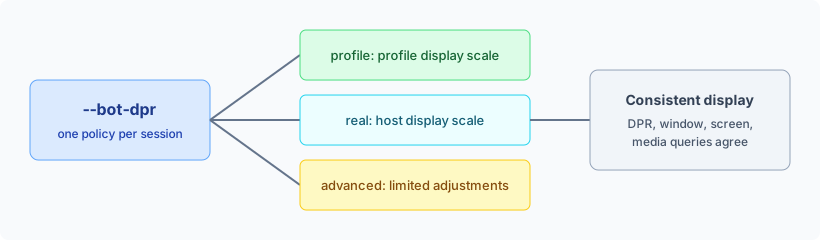
Start with the display model that the profile is meant to represent. A profile-backed browser normally carries a target operating system, viewport family, screen dimensions, and input capabilities. The display scale belongs to that same group. If the profile represents a laptop or a phone, profile keeps the scale connected to the rest of the profile data.
Use real for a workstation where the physical monitor is part of the user experience. This is common for a support operator, a design review, or a browser session that must follow accessibility settings on the host. The host display is the source of truth in these cases. real exposes the host display scale, which may differ from the selected profile, so choose it only when that host-backed configuration is intentional.
advanced is experimental and is not enabled by default. It keeps the profile DPR and applies limited layout adjustments, and it does not rescale the whole page or guarantee matching layout measurements or screenshots. It is not a higher-accuracy mode, and different host and profile DPR values alone are not a reason to enable it. Check the affected page layout and screenshots on the intended host before adopting it, and return to profile if the adjustments introduce inconsistencies.
Desktop systems can run on monitors with different scaling settings. A host may report one value while a profile was prepared for another. profile is useful when the profile must remain stable across machines. real is useful when the current workstation must control the display. Both are valid choices with different sources of truth.
Keeping DPR together with window and screen
DPR, window, and screen form one display configuration. Change them together, not one at a time between runs.
chromium-browser \
  --bot-profile="/path/to/profile.enc" \
  --bot-dpr=profile \
  --bot-window=profile \
  --bot-screen=profile
Desktop headful sessions use host-backed window and screen dimensions by default. If a headful session must report profile dimensions, set --bot-window=profile and --bot-screen=profile next to --bot-dpr=profile. The screen and window guide covers the size flags, and device emulation covers mobile profiles.
A workstation session that represents the operator's own monitor can instead use the host display for all three values:
chromium-browser \
  --bot-profile="/path/to/profile.enc" \
  --bot-dpr=real \
  --bot-window=real \
  --bot-screen=real
The exact window and screen values depend on the profile and the deployment. The two examples show the relationship between the three policies. Select values supported by the installed BotBrowser build and keep the same set for the pages being compared.
Headless deployments deserve the same discipline. Without a visible monitor the display source is still a choice: decide whether the session represents the profile's display or a host display, and write the flags explicitly instead of inheriting whatever the machine provides.
When a session moves between a local workstation and a remote machine, decide whether the browser represents the operator's display or the profile's target display. Make that decision part of the deployment configuration. Avoid selecting a mode from an environment variable that changes silently between machines. A visible launch argument makes the resulting behavior easier to audit. A local test that uses real can produce a different result on a machine with no physical monitor, and a test that uses profile can differ from a workstation test tied to a monitor. Neither result is wrong, but the difference must be intentional.
Per-context sessions
With per-context fingerprints, set --bot-dpr before the BrowserContext creates its first page or worker. The selected policy stays associated with that context's display and layout behavior. Existing pages keep the behavior that was established when their context started, so changing a launch command later does not update them. Close and recreate a context when the display configuration must change.
Use the same mode for the main browser and a per-context profile when they represent the same device. Pick a different mode only when the context deliberately represents a different display environment. Scaling browser contexts covers the wider context lifecycle.
If several contexts represent the same device family, use the same DPR policy and matching window and screen settings. If they intentionally represent different devices, keep each context's settings together in its own configuration record. Do not share a context between a profile-backed display and a host-backed display when the application relies on stable responsive layout.
Context pools should also record which mode was selected. This helps explain why two pages with the same URL can receive different responsive markup, and it prevents a worker from inheriting a context created for a different display policy.
A service that starts many contexts should set the mode in its shared launch configuration and copy it into each context's creation flags. Log the selected mode at startup without logging profile contents. Keep one owner for the command-line defaults used by wrappers and launch services. If several scripts each choose their own default, a maintenance change can split a context pool into different display policies.
When a wrapper builds command lines, pass the selected mode as a complete value rather than concatenating unvalidated text. Accept only profile, real, and advanced, and reject anything else before starting the browser. A failed launch is easier to diagnose than a session that silently uses a different display policy.
Validating and recording a policy
- Start a session with the chosen profile and one DPR mode.
- Keep window, screen, and DPR unchanged for the whole check.
- Start a second session with the same profile and mode and confirm the display behavior matches.
- When comparing modes, change only
--bot-dprand record the full launch command for each run.
Verify your browser fingerprint lists public checkers that show the reported display values.
| Situation | Action |
|---|---|
| Profile display behavior expected | --bot-dpr=profile |
| Session must follow the host display | --bot-dpr=real |
| Existing workflow needs layout adjustments | Evaluate experimental --bot-dpr=advanced on the intended host, otherwise keep profile |
| Display differs between contexts | Set the mode before each context creates pages or workers |
| Headful dimensions follow the host | Add --bot-window=profile and --bot-screen=profile |
The full flag entry is in the CLI flags reference.
Keep a short record for every run. The fields that explain most display-scale differences are the BotBrowser version, the profile, the DPR mode, the viewport, and the capture target, such as a screenshot, a PDF, or a page measurement. With those five fields a reviewer can tell whether two captures differ because of the policy, the profile, or the way the output was taken, without reopening the page.
To compare modes on one page, run the same flow three times with the same browser version, profile, viewport, window mode, and screen mode, changing only --bot-dpr between the runs. Save the launch command next to each result. If two runs differ, the saved commands show immediately whether the mode was the only change, and if they do not differ, the page does not depend on the display scale for that flow.
Screenshot dimensions are expressed in CSS pixels, while the output bitmap can be affected by the device scale factor. A test that compares images should keep the DPR mode fixed for both the reference capture and the current capture. Otherwise a layout can be unchanged while the bitmap dimensions or text rasterization differ.
PDF and print workflows have their own page-size rules, but the web layout that feeds the print operation still depends on viewport and display values. Choose the DPR policy before loading the document, then keep print settings separate from display settings. This makes it easier to tell a CSS layout change from a paper-size change.
For visual regression, store the policy beside the viewport and browser version in the test metadata. Re-run a baseline only when the intended display policy changes. Do not update screenshots just because a runner has a different monitor. Use profile for portable baselines or real for tests explicitly tied to a workstation.
Before shipping a configuration, confirm the following in the launch record:
- the BotBrowser version is fixed;
- the profile target and host role are documented;
- the DPR mode is explicit;
- window and screen modes are explicit;
- the mode is set before the first page is created;
- screenshot or responsive tests use the same policy as their baseline;
- each per-context configuration records its own display policy;
- a change from
profiletorealoradvancedis reviewed as a behavior change.
These checks do not require a page to expose private profile data. They make the source of display behavior clear to the team operating the browser. If a layout differs after a deployment, the launch record gives you the first places to compare.
Rolling out and maintaining a policy
Begin with one representative profile and one application flow. Run the flow with profile, then repeat it with the same browser version, viewport, and window settings. If the host display is part of the requirement, repeat the comparison with real. Keep the output from each run together with the launch record. This gives the team a small reference set before the policy is applied to a larger pool.
Roll out the selected mode to one context group first. Check the pages that use responsive navigation, image selection, tables, charts, and print layouts, because these areas often show display changes sooner than ordinary text pages. If the result is suitable, apply the same configuration to the remaining contexts that represent the same device family.
Treat the selected mode as part of the test input, not as an environment detail. When a bug report says that a page looked different, the first question is which display source the session used. If the launch record answers that question, the investigation can move straight to the page, the profile, or the host.
Do not mix policy changes with a browser version change, a profile migration, or a viewport redesign. Each of those changes can alter layout behavior. When several changes are needed, apply them in separate test runs and keep the records separate. A clear sequence makes it possible to identify which change affected the result.
After moving to a new BotBrowser release, review the selected policy even when the command line has not changed. The default remains profile, but a release can change the available documentation or supported options. Reuse the same profile and capture settings for a before and after comparison. If the result changes, check the browser version, profile, window mode, screen mode, and DPR mode in that order.
Store the browser version, profile, selected mode, viewport, and capture target next to the test or service configuration. This record is useful when a page changes its responsive layout, when an image source changes, or when a screenshot is rendered at an unexpected size. It also gives reviewers a concrete list of values to approve before a rollout.
Host display settings can affect text size, contrast, and input behavior in a headful workstation. If an operator uses the browser directly, real may match that person's display expectations. If the browser is a portable profile-backed session, profile keeps the display behavior stable when the host changes. Discuss this choice with the people who use the session instead of selecting a mode only from server defaults, and run accessibility reviews with the same viewport and window settings used in production.
The most common mistakes are leaving the mode implicit while changing the host machine, changing DPR after a context has already created pages, and using advanced as a general quality setting. Write all three display policies explicitly when a workflow depends on them, create a new context for a new display policy, and keep advanced limited to the workflow that needs it.
A display policy is easiest to maintain when it is visible next to the rest of the launch configuration. Include the selected mode in deployment notes, test fixtures, and runbooks so that a teammate can tell whether a session follows the profile or the host without opening the page. When a configuration moves from development to production, keep the mode and the related window and screen settings, and record the old and new mode together with any updated visual baselines whenever a deployment changes it.
BotBrowser provides the --bot-dpr flag to select the device-pixel-ratio policy (profile by default, real for the host display, and experimental advanced). Set before a context creates its first page, it lets desktop and per-context sessions keep one documented display-scale source, so a team can compare runs by changing only that flag. BotBrowser cannot make advanced rescale the whole page or guarantee identical layout measurements or screenshots, and it does not control the host monitor, the page's responsive CSS, or how a site uses the reported value.
For handling a ratio change that arrives without a resize event, see the mobile viewport resize event guide.
Public sources
- MDN: Window.devicePixelRatio
- BotBrowser documentation: Device Pixel Ratio Policy
- BotBrowser CLI flags: --bot-dpr
Practical conclusion
Treat --bot-dpr as part of the test input: pick profile for portable baselines, real only when the workstation monitor is the requirement, and evaluate advanced on the intended host instead of adopting it as a default. Then keep one launch record per run with the BotBrowser version, profile, mode, viewport, and capture target, so a screenshot or responsive difference points at the page rather than at an unrecorded display setting.
This article is part of the guide: What Is a Browser Fingerprint?
Related Articles
Screen and Viewport Properties for Responsive Design
FingerprintScreen and Window Fingerprinting: Display Tracking
FingerprintActive Window Emulation and Page Visibility State
FingerprintMobile Viewport Resize Events: Order, Debounce, and Layout
Fingerprint--bot-performance-timing: Browser Timing Signals and Fingerprinting
FingerprintFrame Rate Fingerprinting: Refresh Rate and Video Timing
Take BotBrowser from research to production
The guides cover the model first, then move into cross-platform validation, isolated contexts, and scale-ready browser deployment.