Idle Detection API: User Control, Permissions, and Privacy Boundaries
Use the Idle Detection API with clear user intent, explicit permission handling, and a strict distinction between browser idle state and application presence.
BotBrowser Team
Want the structured docs for Platform?
This article lives in the editorial library. For step-by-step setup, reference material, and ongoing updates, jump into the docs section.
The Idle Detection API tells an application whether the user and device appear idle. It can pause collaboration indicators or expensive refreshes, but it cannot prove that someone left, is available, or agreed to observation. It requires permission and user activation, reports only coarse state, and exposes no personal activity history. BotBrowser can repeat compatibility tests with an authorized profile; it cannot grant permission, create user intent, or turn idle state into an identity credential.
TL;DR
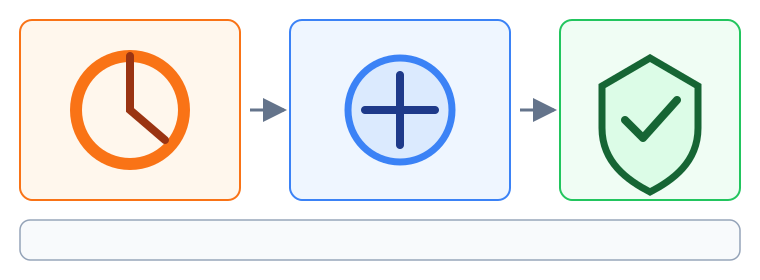
Use this API only after a clear user action, treat permission refusal as normal, and keep the signal separate from identity or consent. BotBrowser can test an explicitly configured browser context with an authorized profile, but cannot grant the permission or prove human presence.
Contents
- What the API reports
- Permission and user activation
- Privacy limits and safe behavior
- BotBrowser capabilities and limits
- Conclusion
Key points
- Explain the purpose first, then request
idle-detectionpermission from a real click or key activation. - Treat
active,idle, andlockedas short-lived product signals, never as proof of presence, identity, consent, or attention. - Stop detection when the feature ends, use a bounded time limit, and do not retain a complete state-change timeline.
- Feature-detect the API and provide a visible fallback for unsupported browsers, contexts, or policies.
- BotBrowser can reproduce an authorized profile and record outcomes; the page still owns disclosure, activation, minimization, and fallback.
What the API reports
IdleDetector reports userState (active or idle) and screenState (locked or unlocked). Detection starts only after start() succeeds. The configured idle limit is the number of milliseconds before the browser may classify the user as idle; it is not the last-input time and does not identify an input type. The change event reports a new combination.
This is a browser model, not a verified person. A user may be reading without typing, another person may use the device, and assistive technology may produce different input. A locked screen does not prove ownership. Use the signal to pause previews or refreshes, never for authentication, attendance, or surveillance.
Permission and user activation
When available, query navigator.permissions.query({ name: 'idle-detection' }) before starting and explain the reason. The prompt should follow a clear action such as “pause when I leave,” not page load, a timer, or a simulated click. granted, denied, and prompt have different meanings; prompt is not authorization.
User activation is brief. Call IdleDetector.requestPermission() directly from the event handler while activation is valid, and treat denial as a normal product path. A browser, iframe, private mode, or enterprise policy can still reject the request. Do not loop prompts.
A user-controlled minimal example
let detector;

async function enableIdlePause(report) {
  if (!('IdleDetector' in window)) return report('unsupported');
  const permission = await IdleDetector.requestPermission();
  if (permission !== 'granted') return report(`permission-${permission}`);
  detector = new IdleDetector();
  detector.addEventListener('change', () => report(`${detector.userState}-${detector.screenState}`));
  try {
    await detector.start({ ['thres' + 'hold']: 60_000 });
    report('started');
  } catch {
    detector = undefined;
    report('start-failed');
  }
}

function disableIdlePause() {
  detector?.stop();
  detector = undefined;
}
Call it from a real user activation and provide a stop control. When unavailable, preserve the last product state and do not persist exception text that could contain page or account data.
Privacy limits and safe behavior
Even coarse event sequences can become a behavior log. Do not send every change to analytics, infer routines, or retain timestamps longer than the feature needs. Prefer an in-memory flag; if reporting is required, retain only the aggregation users expect.
Idle is not consent. A locked screen does not authorize an operation, and active does not prove that a message was read. Re-check authorization before irreversible actions, keep account controls available after a timeout, and require a fresh gesture for sensitive changes. Never use idle state to silently sign out, change permissions, or expose private content.
The API is intended for secure contexts and may be unavailable in an iframe or under Permissions Policy. Cross-origin frames, private mode, power-saving behavior, and managed profiles can change results. Treat unsupported and denied as expected branches, not evidence of activity.
BotBrowser capabilities and limits
BotBrowser can load an authorized profile and keep browser, proxy, headed or headless mode, and display configuration explicit during a check. A test record can include version, target system, profile family, permission result, activation path, detector start result, and visible fallback.
BotBrowser does not grant idle-detection permission, create user activation, work around Permissions Policy, or turn a simulated click into informed consent. It cannot guarantee a platform classifier, lock behavior, iframe policy, or third-party interpretation. The application owns explanation, controls, minimization, and recovery.
Evidence and fallback matrix
| Observation | Safe interpretation | Next step |
|---|---|---|
unsupported | The API is absent in this context | Keep manual pause or a timer |
permission-denied | The browser or user refused access | Do not monitor or reprompt in a loop |
active-idle after started | The detector emitted a coarse transition | Pause the target feature and keep controls |
locked | The browser reports a locked screen | Protect the UI; infer no identity or consent |
| Start rejected after activation | Policy, context, or platform blocked it | Record a bounded failure and show fallback |
Repeat the fixture in the modes and profiles used for deployment. Record platforms separately; do not collect screenshots or account data merely to prove one idle transition.
Operational patterns that keep the signal small:
Choose a single product decision for each detector. For example, a reading workspace may pause a live preview after a period without interaction, while a meeting page may dim a nonessential panel. Keeping one consequence makes the signal easy to explain and easy to reverse. Avoid allowing one event handler to make unrelated account, billing, or security decisions.
Keep the detector lifetime aligned with the feature that needs it. Start it when the user enables the optional behavior and stop it when the workspace closes, the user turns the behavior off, or the page no longer needs the result. A detector that runs for the entire account session collects more state than a detector scoped to one panel.
Use a stable, bounded setting instead of trying to learn an individual routine. A product may offer a small set of understandable choices such as one minute, five minutes, or never. The setting should describe what will pause and how to resume it. Do not silently tune the limit from a history of activity or use different limits to classify people.
Make every state transition reversible. If the signal pauses a preview, show how to resume it with a click. If a locked screen hides content, preserve the user's place without discarding unsaved work. The user should be able to continue after a false positive without repeating an account or permission flow.
Treat a permission change as a product event. Users can revoke access in browser settings, administrators can change a policy, and a restored profile can have a different decision. Re-check the state when starting a feature and show a concise explanation when the result changes. Do not treat a previously granted decision as permanent.
Separate browser state from application state. The browser may report active while the application is offline, loading, or waiting for a server response. Conversely, an application can receive a message while the browser reports idle. Use the detector only for the narrow local behavior it can inform, and keep network, account, and synchronization state in their own models.
Test ordinary and constrained contexts. Run the same user journey in a top-level secure page, the embedded context the product supports, a managed profile, and a privacy mode when those are part of the service. Record whether the API is absent, denied, or started, and verify that the visible alternative is usable in each case.
Do not make screenshots the evidence for a state transition. A screenshot can contain account names, message text, or other personal information, and it does not explain why the browser classified the state. A small structured record such as context, permission result, detector lifecycle, and chosen product action is more useful for a compatibility review.
Review logs for accidental detail. A debug statement that includes every transition, an account identifier, and a page URL can become a behavioral record even when the feature itself is harmless. Keep production logs to bounded outcomes, redact identifiers, and set a retention period that matches support needs. Remove temporary diagnostics after a test fixture is accepted.
Document the user promise next to the control. “Pause the live preview when I am away” is specific; “monitor activity” is not. Explain whether the screen lock signal is included, whether the feature works in an embedded view, and what happens after denial. Good copy prevents a coarse browser signal from being interpreted as a stronger promise.
Coordinate with accessibility behavior. A person may be reading slowly, using a switch device, listening to speech, or navigating without a pointer. The detector cannot identify those situations. Never remove keyboard access, extend a timeout indefinitely, or mark a user as inattentive because the browser state changed. Offer a manual pause setting and preserve focus when the feature resumes.
Plan for support without collecting surveillance data. A support operator can ask whether the user saw a permission prompt, which browser family was used, and whether the fallback appeared. They do not need a transcript of every state change or a recording of the user's screen. A small diagnostic view can show the current permission and feature mode locally, with an explicit copy action if the user chooses to share it.
When a test fails, change one boundary at a time. First confirm that the page is secure and the API exists. Then inspect the permission result, the activation path, and the start call. Finally test the application response to a change event. This order distinguishes a browser capability issue from a policy issue and from an application bug without encouraging repeated permission prompts.
The same discipline applies to release comparisons. Keep the browser version, target operating system, profile family, context type, and fixture revision together. Compare the visible outcome and lifecycle record, not an assumption that two platforms classify every user in precisely the same way. A candidate that changes a fallback message may be acceptable even when the underlying platform behavior is unchanged.
Use BotBrowser as a repeatable compatibility surface. An explicitly configured browser context can make the activation path, profile state, display mode, and proxy choice visible in the test record. That helps compare a supported baseline with a candidate. It does not turn a simulated action into consent, change a platform's classification, or remove the need for a user-facing control.
Finally, make removal part of the design. If the feature is retired, stop detectors, remove listeners, delete obsolete diagnostic fields, and review stored aggregates. A short-lived convenience signal should not leave a permanent data model behind. The safest implementation is one whose lifecycle, permission path, and fallback can be explained in a few sentences to the person using it.
A practical review checklist for teams:
Before enabling the feature, name the user action that opens the permission request and the exact behavior that follows a successful start. Put both in the interface near the control. A reviewer should be able to answer what the detector does, when it stops, and what the page does when permission is denied without reading application source code.
During a test, record only the fields needed to compare the journey: browser family and version, operating system, profile purpose, context type, permission result, lifecycle result, and the visible product response. Keep account names, page text, session tokens, and unrelated network details out of the fixture. This makes the record useful to support without turning it into a user history.
When the page is embedded, verify the owner of the top-level document and the policy that governs the frame. A component can be technically correct and still lack access because its embedding relationship changed. Explain that outcome as a context limitation, keep the alternative action visible, and do not ask the user to repeat a permission gesture that the policy will reject.
For managed environments, include the profile and policy source in the test description. An administrator may configure permissions, display behavior, or privacy mode outside the page. The application should report a concise state such as unavailable in this managed context, then preserve the workflow that does not require the detector. That message is more useful than a generic failure or a silent timeout.
Retest after browser upgrades, profile migrations, and changes to the page's embedding route. The same code can receive a different state when a browser changes a permission prompt, a profile loses a stored decision, or an administrator tightens a policy. Compare the user-visible result and the fallback, and keep a known-good fixture available for support.
Finally, ask whether the feature is still needed. If a normal timer, visibility change, or an explicit pause button meets the product goal with less information, choose that simpler behavior. Idle Detection should earn its place by solving a clear interaction problem while keeping the user's control and the application's data boundary easy to understand.
Teams can also review the feature during ordinary support work. Ask whether the person understood the permission request, whether the page showed the expected alternative after a refusal, and whether the paused feature was easy to resume. These questions test the product contract without asking for a history of the person's activity. Keep support notes about the browser context and visible result, not about where the person was or what they were doing before the signal changed.
At release time, assign an owner for the permission copy, the stop control, and the alternative path. The owner should know which browser contexts are supported and how to reproduce a denial. This small responsibility prevents a compatibility check from becoming a one-time exercise that nobody can repeat after the next browser or profile change.
Conclusion
Idle Detection is a narrow convenience signal. Request permission after meaningful user action, handle refusal, stop detection when finished, and avoid identity or surveillance uses. Validate both the authorized path and the fallback for denial or lack of support. See also browser privacy basics and browser interaction validation.
FAQ
Does idle mean the user left?
No. It is a coarse browser signal; the user may be reading, or someone else may be using the device.
Can permission be requested on page load?
Request it from a user activation after explaining the purpose. Denial must be a normal branch.
Can BotBrowser force permission?
No. It can repeat an authorized profile flow; permission, activation, policy, and platform behavior remain controlled by the browser and user.
Should changes be sent to analytics?
Usually not. Process locally and keep only the aggregation users expect.
What is the practical conclusion?
Keep the detector short-lived, explain its purpose, and preserve a manual control when the signal is unavailable.
Sources and next reading
Sources
Related Articles
Web Share API: Permission Boundaries and Safe Fallbacks
PlatformDocument Picture-in-Picture: Permission and Window Boundaries
PlatformPermissions Policy, Browser Capabilities, and Privacy
PlatformBrowser API Compatibility Data and Feature Fallbacks
PlatformNetwork Information API: Hints, Privacy Limits, and Fallbacks
PlatformWeb Share API and User-Initiated Sharing
Take BotBrowser from research to production
The guides cover the model first, then move into cross-platform validation, isolated contexts, and scale-ready browser deployment.