Mobile Browser Consistency on Android, iOS, and Desktop
Plan coherent browser profiles across mobile and desktop environments while respecting legitimate platform differences, privacy, and user expectations.
Want the structured docs for Platform?
This article lives in the editorial library. For step-by-step setup, reference material, and ongoing updates, jump into the docs section.
Consistency means a believable product experience
Teams that operate browser workflows across phones, tablets, and desktops often ask for one simple result: the same profile should remain understandable wherever it is used. That request does not mean every platform must expose identical values. Android, iOS, and desktop systems have different screen metrics, permission models, input methods, and browser conventions. A good profile respects those differences while keeping the important identity decisions stable.
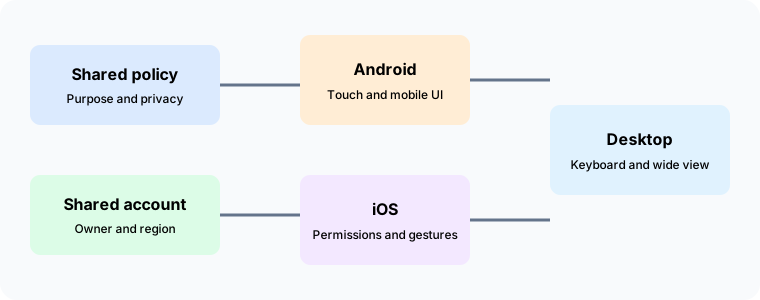
The stable parts usually include the purpose of the context, its account ownership, regional settings, privacy choices, and route policy. The variable parts include viewport dimensions, touch availability, keyboard behavior, and platform-specific capabilities. Separating these categories prevents a team from forcing a desktop profile onto a phone or treating a normal mobile difference as a reliability problem.
Consistency improves customer support, testing, and privacy review. A support agent can understand why a mobile page has a narrow layout without mistaking it for a different account identity. A test owner can compare a journey across platforms while recording which differences are expected. A privacy owner can review one policy for the route and data handling while allowing each device to present its real interaction model.
For broader profile planning, see cross-platform browser profiles. For network alignment, read proxy, DNS, and WebRTC consistency.
Define the profile before choosing a device
Start with a profile brief. State the workflow purpose, account owner, approved region, language, timezone, network policy, and retention expectations. Add a short list of capabilities the workflow needs, such as camera access, file upload, notifications, or browser calls. This brief becomes the reference point when the same purpose is delivered on a phone and a desktop.
The brief should also identify intentional differences. A mobile context may use a compact viewport and touch input. A desktop context may use a wider viewport, a mouse, and a hardware keyboard. These differences are not identity drift when they are documented and expected. A profile that hides them can make a mobile session look unnatural and can make support harder.
Avoid putting account secrets in the brief. Record the owner and the location of approved configuration, not the credentials themselves. A small policy document is easier to review when it describes decisions rather than copying every value a browser can expose.
Once the brief is approved, create separate context variants for Android, iOS, and desktop. Give each variant a clear label that names the platform and purpose. Keep the shared policy visible so an operator can understand which properties should remain stable and which can vary naturally.
Platform traits that should remain natural
Mobile browsers expose touch capability, compact viewports, mobile user interface conventions, and permissions designed for a handheld device. Desktop browsers expose pointer precision, keyboard shortcuts, larger layout areas, and different window management. These traits affect how pages behave and how users complete tasks.
Preserve the platform trait that a user would expect. A mobile context should support touch-friendly interaction and responsive layouts. A desktop context should support keyboard navigation and a wider composition. Trying to make a phone appear like a desktop can create broken layouts and confusing permission prompts.
The same principle applies to screen density and orientation. A phone may rotate or use a high-density display. A desktop may use multiple monitors or a different scaling preference. Record which changes are normal for the workflow and which require a review. The purpose is to keep a session coherent, not to freeze every display detail.
Input methods deserve their own note. Touch events, pointer events, keyboard events, and accessibility input can all produce a valid journey. The profile should describe the intended primary input while allowing users to use supported alternatives. A consistent profile remains usable for people with different interaction needs.
Android profile planning
Android contexts often vary by screen size, manufacturer settings, and browser availability. Choose a device class that fits the workflow, such as a compact phone, a large phone, or a tablet. Record the expected viewport orientation and the permission behavior that users will see. The class is more useful than pretending to represent one exact physical device.
Keep the Android variant aligned with the shared route, locale, and timezone policy. Let mobile layout and touch behavior remain visible. When the workflow needs camera, microphone, or location features, document the user-facing consent experience and the reason each capability is needed.
Android background behavior can pause a tab or change how notifications are delivered. A workflow that depends on a long-lived page should define what happens after a pause and how a user resumes it. Do not treat a background transition as a new identity unless the route, account, or purpose also changed.
For testing, compare a small number of representative Android classes rather than collecting every model. Capture the expected screen, input, and permission differences in the test notes. This approach keeps reviews manageable and helps a support agent recognize a normal platform variation.
iOS profile planning
iOS contexts have their own permission prompts, viewport behavior, and browser integration. Build the profile around the user journey rather than around a desktop assumption. Confirm how the page responds to safe areas, orientation changes, keyboard presentation, and system-level privacy choices.
Keep the same account purpose and regional policy as other variants. Let iOS handle its normal interaction details, including touch gestures and system permission wording. If a capability is unavailable or presented differently on iOS, explain that difference in the workflow guide instead of attempting to make every prompt look the same.
Safari family behavior can influence storage, media, and navigation choices. A mobile profile should state which browser family is supported and how a user can recover when a page is opened in another app. This is a product decision, not a reason to hide platform information.
Review iOS changes with care when a device or operating system update arrives. The user-facing behavior may evolve while the purpose and privacy policy remain stable. Record the update date, confirm the journey still works, and adjust only the platform-specific notes that actually changed.
Desktop profile planning
Desktop contexts usually have more space, richer keyboard support, and broader window management. Choose a desktop class that fits the workflow, such as a standard laptop, a large monitor, or a managed workstation. Record the expected viewport range and display scaling without treating one exact resolution as a permanent identity requirement.
Keep desktop route and locale decisions aligned with mobile variants when they serve the same account purpose. A user moving from a phone to a laptop should see an understandable regional experience. The page can still use a different layout and input model.
Desktop permission prompts may be more visible, and users may have multiple windows or profiles open. The workflow guide should state which context owns the account and how to close it when the task ends. Clear ownership prevents storage or notification state from drifting between unrelated contexts.
For a managed team, desktop updates can be scheduled and reviewed. Use that predictability to confirm the profile brief after an update. If the operating system changes a supported capability, document the user impact and choose whether the workflow needs a new variant.
Shared identity surfaces
Region, language, timezone, account ownership, and route policy usually belong to the shared profile. Keep them consistent unless the workflow explicitly serves different markets. A mismatch may not always be a privacy concern, but it can change content, dates, currency, and support paths in ways that confuse users.
Storage and permissions need a lifecycle decision. Some contexts can share an account identity while keeping local storage separate on each device. Others may need a managed handoff. State the decision clearly so a user does not assume that signing in on one platform transfers every local preference to another.
Notification and communication policies also travel with purpose. If a workflow permits calls on desktop but not on mobile, document the difference and explain how a user should switch contexts. Do not let a disabled capability look like a technical failure.
Web APIs can expose platform-specific behavior. Review the ones that matter to the workflow, such as media permissions, storage, screen metrics, and input. The review should confirm that the combination makes sense, not that every platform reports the same result.
Separating expected variation from drift
Create a small matrix with rows for shared policy and columns for Android, iOS, and desktop. Mark each item as shared, platform-specific, or not required. This makes an intentional difference easy to defend and an accidental difference easy to investigate.
When a value changes, ask which category it belongs to. A new viewport after device rotation is normal variation. A new route after a network change may be an identity change. A new language after a browser update may require a profile review. The category determines the response.
Keep evidence focused on the user journey. A screenshot of the expected layout, a record of the selected locale, and a note about permissions are usually enough for a support handoff. Avoid retaining a large inventory of every browser observation when the workflow does not need it.
Review the matrix after major browser, operating system, or route changes. Retire rows that no longer matter and add only properties that affect the purpose. A small living document stays useful longer than a comprehensive list nobody maintains.
Privacy and consent on mobile
Mobile permissions can reveal more about a user's surroundings than a page needs. Request camera, microphone, location, or notification access only when the workflow requires it. Explain the purpose in product language and provide a clear path to continue when a user declines.
The profile should record whether a capability is required, optional, or disabled. This makes a support response precise. A user who declines a microphone permission should receive a communication explanation, not a suggestion to change unrelated network settings.
Respect system privacy choices. A browser profile can describe an intended capability, but the operating system remains the place where a user grants or denies access. Treat denial as a supported state and keep the rest of the journey usable when possible.
Retention matters on mobile because devices may be shared, lost, or replaced. Close contexts, remove account assignments, and follow the organization retention policy when a device leaves service. A consistent identity includes a clear end of life.
Testing a cross-device journey
Begin with one approved journey and one representative variant per platform. Confirm that the purpose, account, region, route, and privacy policy are the same. Then exercise the platform-specific steps, such as touch navigation, orientation, keyboard entry, and permission prompts.
Compare outcomes rather than raw browser details. The page should show the expected content, the user should complete the intended task, and the privacy choices should remain visible. A different viewport is acceptable when it produces the expected mobile or desktop layout.
Repeat the journey after a route change or a browser update. Capture what changed, whether it was expected, and whether the profile brief needs an update. A short comparison record helps teams avoid reopening old questions every time a platform changes.
Use separate contexts for experiments. Do not alter a long-lived account context to answer a temporary question about a device. A disposable review context keeps account history and support evidence easier to interpret.
Operations and handoff
Give each variant an owner and a review date. The owner maintains the platform notes, confirms that the shared identity still applies, and decides when a new context is needed. Support staff should be able to find this information without receiving credentials or unrelated device data.
When a user reports a mismatch, ask for the platform, context label, purpose, and visible symptom. Then compare those details with the profile matrix. This sequence prevents a support agent from changing a shared policy to fix a platform-specific layout issue.
Document recovery steps for common states, such as a denied permission, an orientation change, or an expired session. Recovery should preserve the approved identity whenever possible. If it requires a new route or account, state that boundary clearly.
Keep platform notes concise. A few examples of expected variation are more useful than a long inventory. Update the notes when a release changes the user journey, and record why a change was made.
Keeping a profile useful over time
A profile remains dependable when its owner revisits the purpose after a browser update, an operating system update, a route change, or a change in account responsibility. Confirm the shared policy, walk through one representative journey, and update only the platform notes that changed.
Keep a small change record with the date, owner, affected platform, and outcome. This helps support teams understand a new permission prompt or layout without treating it as an unexplained identity shift. When an account or device leaves the workflow, close the related context, remove its assignment, and apply the retention policy before reuse.
The cross-device rule is simple: share the purpose and privacy decisions, preserve natural platform behavior, and create a new context when old history no longer fits. Android, iOS, and desktop can then support one workflow without pretending to be the same device.
Questions teams ask
Should Android, iOS, and desktop expose identical values?
No. They should share the values that define the workflow and retain natural platform differences for layout, input, and permissions.
Can one account use multiple device variants?
Yes, when the account owner approves the purpose and the variants share a clear route and privacy policy. Keep local storage and permissions separate when that is part of the design.
Is a different screen size a consistency failure?
No. Screen size is a platform trait. It becomes a concern only when the resulting journey is not the one the workflow expects.
What should happen after a mobile network change?
Review the route policy and decide whether the context remains appropriate. If the identity or purpose changes, start a new context and record the handoff.
How should declined permissions be handled?
Treat denial as a supported user choice. Explain the feature impact and keep unrelated parts of the journey available.
Closing perspective
Cross-device consistency is a design decision. Keep purpose, account ownership, region, route, and privacy policy coherent, then let Android, iOS, and desktop express their normal interaction models. A short profile brief and a small comparison matrix give teams a durable way to plan, test, and support legitimate workflows.
Use the mobile profile quality guide for a related review checklist, and revisit the profile whenever the route, account purpose, or platform support changes. A context that is clear about what it shares and what it varies is easier to operate and easier for users to trust.
A short handoff record
Keep a handoff record when a workflow moves from one device family to another. Include the profile purpose, account owner, approved region, network policy, and the platform differences that the next operator should expect. Do not copy passwords, session tokens, camera content, or a complete device inventory into the record. The next operator needs decisions and ownership, not a duplicate of private browser state.
The record should name the last review date and the person who can approve a change. If the mobile variant gains a new permission or the desktop variant changes its route, update the shared policy before the next session begins. A small change log prevents support teams from guessing whether a difference is intentional.
Use a fresh context when a handoff changes the account purpose or the privacy boundary. Keeping old storage can make a new device appear to carry history that belongs to another task. Separating the contexts also makes deletion and retention requests easier to complete.
This record keeps the handoff understandable without making platforms identical.
Related Articles
Take BotBrowser from research to production
The guides cover the model first, then move into cross-platform validation, isolated contexts, and scale-ready browser deployment.