CDP Input Coalescing for Consistent Hover Interaction
Decide when to enable per-context CDP mouse hover coalescing, validate the visible result, and keep click, drag, wheel, keyboard, touch, and pen input on their normal paths.
BotBrowser Team
Want the structured docs for Getting Started?
This article lives in the editorial library. For step-by-step setup, reference material, and ongoing updates, jump into the docs section.
Browser automation clients commonly send mouse movement one CDP command at a time. The client sends a point, waits for the command to complete, then sends the next point. That sequence is easy to reason about and works well for clicks, but a long hover path becomes a series of isolated moves. Interfaces that react to the pointer, such as tooltips, hover cards, and menus that open as the pointer approaches, can respond differently depending on how those moves reach the browser's input handling.
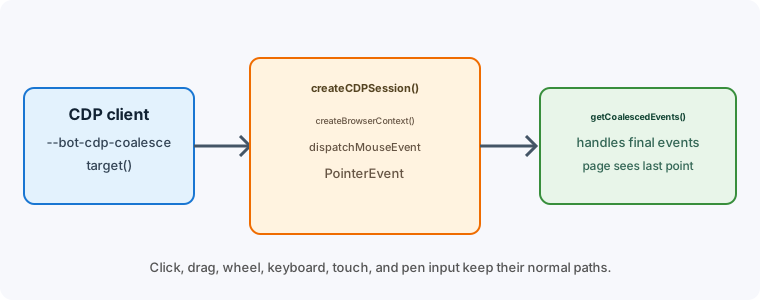
BotBrowser provides a context-level option for hover-heavy workloads: --bot-cdp-coalesce. It is off by default. When you enable it for a BrowserContext, plain CDP mouse hover moves are grouped in order, in short runs, before Chromium delivers them. Your client still chooses every point. Clicks, drags, wheel input, keyboard input, touch, pen input, and relative-motion input stay on their normal paths. The practical questions are when to turn the option on, how to set it per context, and how to judge the result without relying on fixed event counts.
TL;DR
- Keep the option off unless a context has a documented plain-mouse hover need.
- Set it before the first page, then compare paired runs with the same path.
- Judge the visible hover result and follow-up action, not a fixed event count.
Contents
- Start with the default
- Configure one BrowserContext
- What the option covers
- Serial calls and what the client still owns
- Validate with a paired run
- Where BotBrowser fits
- Practical conclusion
Start with the default
Most browser automation does not need a special input setting. Leave the option off when a workload relies on clicks, form entry, keyboard navigation, scrolling, drag and drop, touch gestures, or pen input. The default keeps the normal CDP completion behavior and avoids changing a workflow that already meets its interaction requirements.
Enable the option only for a context that sends frequent plain mouse hover movement through CDP and needs those points delivered in short ordered groups. A tooltip review, a menu that opens as the pointer approaches, a hover card, or a pointer-sensitive desktop interface are typical cases. The setting belongs to the context, so one workload can use it while another context in the same browser keeps the default.
The option does not make a pointer path random, and it does not create movement points. Your client still chooses the coordinates and their order. BotBrowser only changes how accepted hover moves are forwarded in a short run, and the last point remains the final position that the page sees. If the path your client produces is sparse or contains a sudden jump, fix that in the client, because the option does not change trajectory quality.
Decide per workload by looking at the journey, not at the whole fleet. Count the plain hover moves in the journey, check whether the interface reacts to the pointer approaching rather than to a click, and ask whether the default already produces the visible state reliably. If the hover state is reached reliably, there is no reason to change the setting. If it is reached only sometimes, first check the target geometry, the page readiness, and the client's coordinates, then try the option in a separate context and compare the two runs.
Configure one BrowserContext
Set --bot-cdp-coalesce in the context configuration surface that your BotBrowser launcher provides, and apply it before the context creates its first page. Keep the value next to the browser version, the profile selection, and the automation package version, so a later validation run can reproduce the same input policy.
The bare flag enables the behavior, and an explicit --bot-cdp-coalesce=true does the same. Use --bot-cdp-coalesce=false when a shared deployment template might add the flag and a particular context must keep the default. Treat the value as part of the context's configuration rather than something to switch while the context is already serving pages.
const client = await browser.target().createCDPSession();
const context = await browser.createBrowserContext();

await client.send('BotBrowser.setBrowserContextFlags', {
  browserContextId: context._contextId,
  botbrowserFlags: ['--bot-cdp-coalesce'],
});
The example above comes from the Automation Consistency reference and enables the option for a single context. Create the first page in that context only after the call returns.
When one browser hosts several contexts, give each context a deliberate setting. A context with the option enabled does not turn it on for its siblings, and a new context must receive its own value. This separation lets a team compare the same journey with and without the behavior inside one browser.
Keep the setting visible in launch configuration rather than hiding it in page code, and record whether it is on or off in the run metadata. Page scripts are not a substitute for the option, because they cannot change how CDP mouse commands are delivered.
When a context is recreated, apply the option again. A process-level template can make the desired value easy to repeat, but the behavior remains a per-context choice. This matters most for systems that reuse one browser for separate accounts, tenants, or authorized test sessions, where each context should carry the input policy that its own workflow documents.
Navigation is a useful boundary as well. A hover that started on one document does not explain pointer behavior on a replacement document, so wait for the new page to be ready and then run the movement that the new interface needs. If a page or target is replaced in the middle of a movement stream, start a fresh journey instead of continuing the old one.
What the option covers
Only plain mouse hover movement is eligible. In practical terms, no button is pressed, the pointer is not in a relative-motion mode, and the event is an ordinary mouse move. That covers the movement used to approach a target, inspect a hover state, or travel across a desktop interface.
The following input keeps its normal path:
- Mouse button down and up events.
- Active drag movement and drag transitions.
- Wheel input.
- Keyboard input and text entry.
- Touch input.
- Pen input.
- Relative mouse motion.
These boundaries protect input that carries a discrete action or belongs to a different device type. A click keeps its button state and completion behavior, a drag keeps its transition order, and a wheel event keeps its delta and timing semantics. Mobile and touch journeys should be evaluated with touch input and a mobile viewport, pen interfaces with pen input, and relative-motion applications through their normal path, because a mouse-hover setting is not a substitute for those tests.
Button state matters. A move that arrives while a button is held belongs to a drag or another active pointer action, so it is not a plain hover and stays on its normal path. That rule keeps a hover group from crossing the boundary between pointing at a control and acting on it. In the CDP reference for Input.dispatchMouseEvent, a hover is a mouseMoved event with no button held, which is the shape this option is concerned with.
Serial calls and what the client still owns
Serial calls are common in Puppeteer and Playwright integrations because each call is awaited before the next one starts. That is a useful completion contract for clicks and other discrete actions. For a long hover path, however, waiting after every point means that the browser rarely receives several ordinary moves close together.
With the context option enabled, the client can keep its serial command style. The caller does not need to generate a second path, add random delays, or inject page-side pointer events. The existing coordinates and the existing control flow remain the source of the interaction, and each CDP command keeps its normal completion contract.
The change is about delivery, not trajectory quality. A sparse path still looks sparse, and a path with a sudden jump still contains that jump. If a page needs a particular target sequence, improve the client's coordinates and timing separately, then validate the result with the option setting that the deployment will use.
The same distinction applies to application logic. A tooltip that opens only after a dwell still needs a dwell, and a menu that requires the pointer to cross a particular region still needs that region in the path. Coalescing helps hover moves arrive in ordered groups; it does not replace the interaction rules of the application.
Client libraries that interpolate one move into several intermediate points, such as the steps option of mouse.move in Playwright and Puppeteer, are a natural fit. Each intermediate point is a plain hover move that the client already chose, and each one is still awaited as its own call. Interpolation remains the client's job; the option only affects how the resulting moves are delivered.
Use a hover step to reach a control, then use the normal click step to activate it, and do not rely on hover grouping to carry a button transition. For drag and drop, keep the complete drag sequence on its normal path and verify the drop result separately.
This separation makes failures easier to read. If a tooltip does not appear, inspect the hover path, the target geometry, and the page state. If a click does not activate, inspect focus, hit testing, and the click sequence. If a drag does not complete, inspect the drag source, the destination, and the application's acceptance rules. One setting should not become a catch-all explanation for every pointer issue.
The browser decides how delivered points become page events. A page may see a main pointer event with a list of coalesced child events when browser scheduling combines nearby movement, as the MDN reference for getCoalescedEvents describes. Event counts vary with scheduling, page work, host load, and the client stream, so a test should never expect a fixed number of page events. Test the visible result, the order of actions, command completion, and the final pointer position.
Validate with a paired run
| Comparison field | Example bounded value | Acceptance use |
|---|---|---|
comparisonId | hover-menu-r17 | Binds the two contexts to one journey |
contextMode | off or on | Shows the only changed input policy |
viewport | 1440x900 | Keeps target geometry comparable |
coordinateRevision | path-42 | Identifies the ordered hover list |
hoverState | menu-visible | Records the required page result |
finalPoint | x=612,y=184 | Confirms the intended target was reached |
followupResult | destination-loaded | Separates click outcome from hover delivery |
Use a small page or an approved test route that has a tooltip, hover menu, or hover card and exposes a visible state change once the pointer reaches the target. Then run the same journey twice, in two separate contexts:
- Create a context with the option off, or with an explicit false value.
- Move through the target path with the same client and coordinates.
- Record whether the hover state appeared and whether the final pointer position reached the target.
- Create a separate context with the option on.
- Repeat the same path and record the same visible outcomes.
Keep the browser release, profile, viewport, page state, client package, and coordinate list constant, and change one variable at a time. The exact number of page events is not a stable acceptance criterion because the browser controls event scheduling.
For a production workflow, add a click after the hover state appears and verify the resulting page state. Add one control that does not depend on hover, such as a form field or a regular button, to confirm that the wider journey still follows its normal input path. Include a drag, wheel, touch, or pen check only when the workload actually uses that input.
Success means that the required hover state is reachable, the action order is correct, each command reaches one completion, and the final coordinate is not lost. It does not mean that every run exposes the same coalesced list or the same page event count.
An operating policy for an approved desktop review flow can stay short:
- Contexts that inspect hover menus enable
--bot-cdp-coalescebefore their first page. - Contexts that test clicks, forms, keyboard navigation, or drag and drop leave it off unless the same run also has a documented hover requirement.
- Shared run code records the setting with the browser and profile versions.
- The flow validates the hover result and then validates the click or drag result as a separate step.
- A context replacement starts with an explicit setting and a fresh page-state check.
This keeps the option narrow, and it prevents a test suite from silently changing its input contract when a shared launch template changes. Explicit false values are useful in templates that serve both kinds of context.
When the result will drive a deployment decision, have someone who did not write the journey review the comparison. A second reader can confirm that the visible states in the record are the ones the application requires and that no step depends on a particular number of page events. That review is cheap compared with debugging a shared launch template after it has spread to every context.
Keep one compact run record for every comparison. Include the browser release, the profile identifier, the viewport, the client library version, the context setting, the page route, the coordinate list revision, and the time of the run. Leave out account content and page data that the workflow does not need. Name the context policy explicitly so the comparison can be reproduced against the same browser, profile, viewport, and coordinate revision.
Compare the enabled context with a separate disabled context from the same starting page state. Note whether the target became visible, whether the pointer reached the intended final coordinate, whether the follow-up action worked, and whether every CDP command completed once. For a hover menu, record the menu state before the click and the destination after it. For a tooltip, record its appearance and disappearance as part of the journey.
Tie each comparison to one browser and profile pair. When the browser release, profile, viewport, client package, or page revision changes, create a new baseline instead of treating the old result as a direct comparison. Review event counts only as supporting information, and escalate a comparison when the hover state becomes unreachable, the action order changes, a command lacks its completion, or the final coordinate is wrong.
If a client library reports completion before a visible hover state appears, wait for the page state you actually need. CDP command completion and application readiness are separate conditions, so use the application's visible signal, a supported page assertion, or a bounded readiness wait that belongs to the workflow.
The option has no visible effect. Confirm that the context received the flag before its first page, that the movement is plain mouse hover movement, and that the page actually reacts to hover. A click, drag, wheel, touch, pen, or relative-motion sequence is outside the option's scope.
A drag changed behavior after enabling the option. Separate the hover approach from the drag sequence and start the drag through its normal path. The option does not carry active drag movement.
Event counts changed between runs. That is expected when scheduling or page load differs. Compare the reachable hover state, the action order, the command completions, and the final coordinate instead.
Two contexts behave differently. Check each context's explicit value, the browser version and profile, the viewport, the page state, and the client's coordinate list. The setting is isolated per context and does not repair differences in those other inputs.
A page still feels slow. Coalescing cannot fix a sparse path, a heavy page, a slow selector, or an application dwell requirement. Measure the journey at the page level, then adjust the relevant step without changing unrelated input types.
Where BotBrowser fits
BotBrowser provides --bot-cdp-coalesce, an opt-in option for one BrowserContext that groups short runs of plain CDP mouse hover moves in order before Chromium delivers them, so you can compare a hover journey with the option on and off in separate contexts while button, drag, wheel, keyboard, touch, pen, and relative-motion input keep their normal paths. BotBrowser cannot make a sparse or jumpy client path look natural, replace an application's dwell or region rules, fix page readiness, or guarantee identical page event counts or coalesced-event grouping, because the browser engine controls final event scheduling.
The option does not alter browser identity settings, network routing, cookies, storage, permissions, viewport configuration, or profile data, because those stay in their own configuration surfaces. For related practice, see browser interaction validation after browser and profile changes for baseline comparison, pointer events and accessible input for how pages treat mouse, touch, and pen, and BrowserContext capacity planning for running several contexts in one browser.
--bot-cdp-coalesce gives a deployment a clear choice for one narrow interaction class. The default remains off. Enable it for a context that sends dense plain mouse hover movement, keep other input types on their standard paths, validate the visible result, and record the value with the rest of the context configuration.
Practical conclusion
Enable --bot-cdp-coalesce only for a documented hover journey, apply it before the first page, and accept the change only when the required visible state and follow-up action pass in a paired comparison. BotBrowser controls eligible hover delivery; the client still owns the path and the application owner decides whether the journey is correct.
Sources
This article is part of the guide: Browser Automation Getting Started: A First Run Map
Related Articles
Pointer Events and Accessible Input Across Mouse, Touch, and Pen
Getting StartedBrowser Automation Accessibility Testing Guide
Getting StartedPlaywright BrowserContext Lifecycle and Storage State
DeploymentBrowser Interaction Validation After Browser and Profile Changes
Getting StartedPuppeteer + BotBrowser: Launch and Profile Pitfalls
NetworkCustom HTTP Headers in BotBrowser: Flag, Profile or CDP
Take BotBrowser from research to production
The guides cover the model first, then move into cross-platform validation, isolated contexts, and scale-ready browser deployment.