What Is Widevine DRM? Headless Browser Setup and Privacy
What is Widevine DRM? Learn how browser DRM capability affects privacy, fingerprint consistency, protected video playback, and headless validation workflows.
BotBrowser Team
Prefer the maintained product doc?
This article has a matching page in the docs center. Use the docs for the canonical setup flow, current flags, and long-term reference.
Widevine is the DRM system behind most streaming playback, and an automated browser without it cannot play protected media and reports a capability a real Chrome would have. BotBrowser does not supply the CDM; with one installed and an ENT Tier2 licence, it reports DRM capability aligned with the loaded profile. It cannot grant provider authorization, hardware-backed L1 playback, or capture of protected content.
TL;DR
A profile needs no extra DRM flags; add --autoplay-policy=no-user-gesture-required for headless video, and confirm with a small requestMediaKeySystemAccess fixture before testing a real provider. Keep failures separate as capability, CDM loading, license authorization and playback.
Contents
- Introduction
- Why DRM Support Matters for Privacy Research
- What BotBrowser Provides
- The Problem with Other Approaches
- Configuration and Usage
Introduction
Widevine is Google's digital rights management (DRM) system, used by the majority of streaming platforms to protect video content. Netflix, Disney+, Amazon Prime Video, Hulu, Spotify (for video podcasts), and hundreds of other services rely on Widevine to control content access. When running browser sessions that involve video content, DRM support is not optional. Without it, protected video simply will not play.
BotBrowser does not bundle or distribute the Widevine Content Decryption Module (CDM). You obtain it through official channels and place it where the browser can load it for your platform. Whether protected media then works still depends on the host, the CDM you installed, provider policy, account, geography, and license response; verify the target workflow instead of assuming playback.
Why DRM Support Matters for Privacy Research
Browser Identity Consistency
DRM capability is part of how a browser presents itself to websites. Every standard Chrome installation includes Widevine support. When a browser session reports no DRM support while claiming to be Chrome, that inconsistency creates a mismatch in the browser's fingerprint profile. Websites that perform device verification checks can identify this gap and flag the session as unusual.
BotBrowser is designed for browser sessions to present DRM capabilities aligned with the loaded fingerprint profile. This documented alignment helps privacy researchers study device-identity checks, but session behavior still depends on the browser, CDM, license, and content provider.
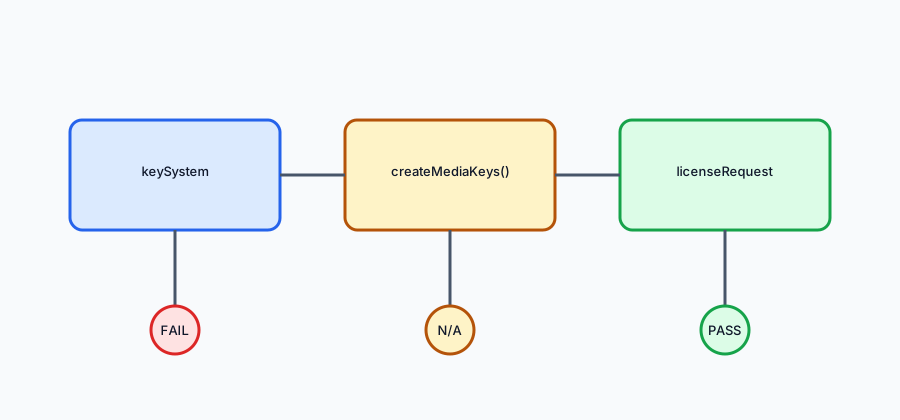
Use the headless server setup guide when the same check moves into a deployment, how EME and Widevine queries reveal platform identity when a provider keeps rejecting a session that already reports support, and the EME failure checklist for automated browsers when the capability call itself fails. The DRM capability overview keeps those four checks in one order and records a value at each.
Real-World Content Interaction
Many modern websites embed DRM-protected video content beyond just streaming services. E-commerce platforms use DRM for product demonstration videos, news organizations protect premium video content behind DRM, and social media platforms apply content protection to certain video types. Being able to interact with all of this content is necessary for complete page testing, monitoring, and research.
Without DRM support, an automated session cannot play some protected media. BotBrowser can expose the documented EME/CDM capability in supported releases, but it cannot grant provider access or make every protected title play like desktop Chrome.
Fingerprint Protection Through Completeness
Privacy protection is about presenting a complete, consistent browser identity. Missing DRM capabilities are one more signal that can distinguish an automated session from a genuine browser. BotBrowser's approach extends to the Encrypted Media Extensions (EME) API that websites use to query DRM support. DRM responses aligned with the loaded profile can reduce mismatches in this surface, while other tracking signals may remain.
What BotBrowser Provides
Profile-Consistent Widevine Support
BotBrowser does not ship the CDM. What it provides is a profile-backed EME capability layer: with a CDM installed and an ENT Tier2 licence, the reported key systems, robustness levels and the configuration returned by requestMediaKeySystemAccess() follow the loaded profile instead of the host. The CDM you install, the profile, and the licence are three separate inputs, and a missing one shows up as a different failure than a provider rejection.
That separates BotBrowser from a stock headless Chrome setup, where the CDM may or may not be present depending on distribution, platform and installation method, and where none of the surrounding capability values follow a declared profile. Many Linux server environments, which are the most common deployment target for headless browsers, do not include the CDM by default. BotBrowser does not remove that installation step; it makes the capability layer around it consistent and checkable.
Profile-Matched DRM Capabilities
When you load a fingerprint profile in BotBrowser, the DRM capabilities reported by the browser match what that profile's target platform would support. A Chrome profile includes the expected Widevine information that matches a real Chrome installation. This means all DRM-related API responses are consistent with the rest of the browser's reported identity, including user agent, platform strings, codec support, and other fingerprint signals.
This profile-level consistency is what sets BotBrowser apart. Other solutions may include Widevine support, but without matching the DRM capability responses to the rest of the browser profile, inconsistencies can still appear.
Version compatibility and validation
One of the most common issues with manual Widevine setup is version mismatch. BotBrowser documents the browser/CDM pairing where available, which can reduce this risk. Playback still depends on the target content, license policy, platform, host, and exact release, so validate a representative authorized stream before relying on it.
Headless Video Playback
BotBrowser can support headless video playback, including some DRM-protected content, when the release, CDM, license policy, and runtime meet the provider's requirements. Video rendering and decryption can happen without a visible display, but a headed check may still be needed for a particular provider. This is useful for several common use cases:
- Monitoring video ad delivery and verifying playback behavior
- Testing video streaming platform functionality in CI/CD pipelines
- Capturing video metrics such as buffering events, quality changes, and playback progress
- Verifying that DRM licensing flows complete successfully
- Privacy research into how streaming platforms perform device verification
The Problem with Other Approaches
Standard Headless Chrome
The version of Chrome bundled with Puppeteer or Playwright often lacks the Widevine CDM, especially on Linux servers. This means DRM-protected content cannot play at all. Even when the CDM is present, there is no guarantee it matches the Chrome version, leading to unpredictable behavior.
Manual CDM Installation into a Chrome Directory
It is technically possible to download the Widevine CDM library and drop it into a stock Chrome installation directory. That specific approach is fragile and error-prone:
- The CDM version must precisely match the Chrome version
- File paths and naming conventions differ between operating systems
- Chrome periodically updates its CDM, but headless installations do not benefit from automatic updates
- Incorrect installation results in silent failures with no helpful error messages
- Each time you update Chrome, you may need to repeat the entire CDM installation process
Putting the CDM where BotBrowser loads it is a different, supported step, described under What BotBrowser Provides. What the list above warns about is patching a stock Chrome directory: the version pinning, the per-OS paths and the silent failures all come from matching files to a browser build you did not control.
Disabling DRM Features
Some automation setups use flags like --disable-features=MediaDrm to avoid dealing with DRM complexity. While this prevents DRM-related errors, it also means DRM content cannot play. More importantly for privacy research, it causes the browser to report no DRM support, which is a detectable difference from standard Chrome and undermines the consistency of your browser fingerprint.
Electron or CEF-Based Solutions
Electron and Chromium Embedded Framework (CEF) builds can include Widevine, but they require special licensing agreements with Google. This adds legal and logistical complexity that makes them impractical for most privacy research and testing workflows.
Configuration and Usage
Basic DRM Usage
No special flags are needed for DRM support. It works by default with any profile:
chrome --bot-profile="profiles/windows-chrome-130.enc" \
       --user-data-dir="$(mktemp -d)"
Enabling Autoplay for Headless Video
In headless mode, browsers block autoplay by default. For video content that should play without user interaction, add the autoplay policy flag:
chrome --bot-profile="profiles/windows-chrome-130.enc" \
       --autoplay-policy=no-user-gesture-required \
       --user-data-dir="$(mktemp -d)"
Playwright: Verifying DRM Support
Use this Playwright script to confirm that Widevine DRM is working in your BotBrowser setup:
const { chromium } = require('playwright-core');

(async () => {
  const browser = await chromium.launch({
    executablePath: 'path/to/botbrowser/chrome',
    args: ['--bot-profile=profiles/windows-chrome-130.enc'],
    headless: true,
  });

  const page = await (await browser.newContext()).newPage();

  const widevine = await page.evaluate(async () => {
    try {
      const config = [
        {
          initDataTypes: ['cenc'],
          videoCapabilities: [
            {
              contentType: 'video/mp4; codecs="avc1.42E01E"',
              robustness: 'SW_SECURE_DECODE',
            },
          ],
        },
      ];
      const access = await navigator.requestMediaKeySystemAccess('com.widevine.alpha', config);
      return {
        supported: true,
        keySystem: access.keySystem,
      };
    } catch (e) {
      return { supported: false, error: e.message };
    }
  });

  console.log('Widevine support:', widevine);
  await browser.close();
})();
Playwright: Headless Video Playback with Monitoring
This example shows how to navigate to a video page and monitor playback progress in headless mode:
const { chromium } = require('playwright-core');

(async () => {
  const browser = await chromium.launch({
    executablePath: 'path/to/botbrowser/chrome',
    args: ['--bot-profile=profiles/windows-chrome-130.enc', '--autoplay-policy=no-user-gesture-required'],
    headless: true,
  });

  const page = await (await browser.newContext()).newPage();
  await page.goto('https://example-streaming-site.com/video');

  // Wait for the video element to appear
  await page.waitForSelector('video');

  // Monitor playback state
  const videoState = await page.evaluate(() => {
    const video = document.querySelector('video');
    return {
      readyState: video.readyState,
      currentTime: video.currentTime,
      duration: video.duration,
      paused: video.paused,
    };
  });
  console.log('Video state:', videoState);
  await browser.close();
})();
Docker Deployment
BotBrowser's Widevine support can be used in Docker when the image, CDM, host runtime, and provider requirements are satisfied. Check the container's capability and license path before relying on it:
docker run -it botbrowser/botbrowser:latest \
  chrome --bot-profile="profiles/windows-chrome-130.enc" \
         --autoplay-policy=no-user-gesture-required \
         --user-data-dir="$(mktemp -d)"
For more details on container deployment, see the Docker Deployment Guide.
Best Practices
- Use
--autoplay-policy=no-user-gesture-requiredfor headless video playback. Without this flag, videos require a simulated user gesture to start playing, which adds complexity to your automation scripts. - Check
video.readyStateto confirm video content is loading correctly. AreadyStatevalue of 4 means the browser has enough data buffered to play the video through without interruption. - Monitor
video.errorfor any DRM-related failures. License server errors, content key issues, and policy violations will appear on this property, giving you clear diagnostic information. - Use profiles matching the content region. Some streaming platforms restrict content by geography. Pair your fingerprint profile with an appropriate proxy for the target region to ensure content is available.
- Do not disable DRM features. Flags like
--disable-features=MediaDrmwill break DRM support and create detectable inconsistencies in your browser's fingerprint profile. - Test with known DRM content first. Use Bitmovin's DRM demo page or similar public test streams to verify DRM functionality before testing against production platforms. This helps isolate any issues to your configuration rather than the target site.
- Track the browser build and the CDM separately. BotBrowser does not ship the CDM, so when a content provider raises its DRM requirements you check the browser release and the CDM version you installed against the provider's notices, and update whichever one moved.
Frequently Asked Questions
Does BotBrowser support Netflix, Disney+, or other streaming platforms?
BotBrowser includes Widevine L3 DRM support, which is the same level of DRM support available in standard Chrome on desktop. Whether specific content plays depends on the streaming platform's content policies, geographic restrictions, and account requirements. BotBrowser gives you the same DRM capabilities that a regular Chrome user would have.
What video resolution can I expect with L3?
Widevine L3 (software decryption) typically supports up to 720p or 1080p depending on the content provider's policy. 4K and HDR content usually requires L1 (hardware-backed) DRM, which is not available in headless environments. This is the same limitation that applies to standard Chrome on devices without hardware security modules.
Can I capture or record DRM-protected video?
BotBrowser provides DRM playback capability for testing and privacy research purposes. The DRM system is designed to protect content from unauthorized copying. BotBrowser does not provide tools to circumvent content protection measures.
Do I need a special license for Widevine support?
The CDM you install and the BotBrowser distribution do not replace a provider's account, content, or license authorization. Whether a separate commercial agreement is needed depends on the deployment and provider; confirm those terms before use.
Why does video show a black screen in headless mode?
In headless mode, video decoding still occurs in the background but there is no visible display surface. This is expected behavior. Use video.readyState and video.currentTime to verify that playback is progressing correctly. If you need visual verification, capture screenshots or short recordings with your automation framework (Playwright's page.screenshot() or Puppeteer's equivalent).
Does DRM work with all BotBrowser profiles?
Not necessarily. A profile controls declared browser-facing values, while actual playback depends on the build, host, CDM, provider, account, and license response. Test the selected profile and target content separately.
Can I monitor DRM license exchanges for research?
Use only provider-authorized diagnostics and record bounded metadata such as status and timing. Do not intercept, store, or expose license secrets, keys, or protected media; provider terms may restrict observation of license traffic.
Does this work in Docker containers?
It can, when the container image, host runtime, CDM, permissions, provider, and license path support the requested workflow. Validate those conditions in the target environment; Docker alone does not guarantee DRM playback.
How does BotBrowser keep up with CDM updates?
Check each release's documented browser/CDM pairing and rerun the capability and license checks after an update. A newer CDM or browser does not guarantee that a provider will authorize the same content.
Summary
Widevine DRM support in BotBrowser is documented as a capability of supported releases, but playback remains conditional on CDM loading, host constraints, provider policy, account, geography, and license authorization. Profile-matched reporting can help a controlled comparison; validate behavior with the target content provider. Download BotBrowser for release details, or see the full feature list for documented DRM controls.
For related topics, see MIME and Codec Fingerprinting for media capability configuration, and DRM Fingerprinting for how DRM signals factor into browser fingerprint protection. Review the Proof Center for public validation scope before moving from evaluation to a paid profile.
BotBrowser supports documented Widevine playback setups for authorized DRM testing; it does not guarantee provider authorization, resolution, hardware-backed DRM, or capture.
Beyond the reference page
The reference page describes the supported Widevine setup. The added failure tree separates EME capability, CDM availability, license authorization, and protected playback. It is a headless deployment check for authorized content, not a promise that a provider will issue a license.
Start the diagnosis with a small capability fixture that records the key-system configuration and the result of requestMediaKeySystemAccess. If that call fails, keep the failure separate from a later license request. If the capability call succeeds but the CDM is unavailable, record the browser build, host image, and profile load result before changing media settings. If both succeed but playback is denied, the provider response, account policy, geography, or content requirement may be the deciding boundary. This order prevents a license refusal from being reported as a browser defect.
For a headless deployment, repeat the fixture after a clean restart and store only the capability result, response status, and timing needed for the authorized compatibility decision. Do not capture protected frames or keys. The record includes the container or host description, the declared profile, the browser release, and four outcomes (eme, cdm, license, playback) so the next test run can identify the failing layer.
The same record is useful when a deployment moves from a developer laptop to a container. Keep the profile and browser release fixed, run the capability fixture once on each host, and compare the first divergence. A missing CDM, a rejected key-system configuration, and a provider response with an HTTP error have different owners and different remedies. Treat a black video surface as a playback or rendering symptom until the capability and license steps are known to succeed. Capture status codes and timestamps, not decrypted media or secret material.
The record can include the test origin, key-system configuration, media container and codec, and headed/headless mode. Compare the release, host image, and profile before changing application code.
This record identifies the provider authorization boundary when license is not_requested or rejected.
Retain four outcome fields (eme, cdm, license, playback) and their status values; do not retain protected media, keys, or account secrets.
Keep the report with the test origin, key-system configuration, media container, codec, mode, profile, and browser release. This metadata is enough to repeat the check without retaining credentials or protected content.
For the display and license decision matrix, see Widevine and headless browser DRM boundaries.
Practical conclusion
Diagnose in order: EME capability first, then CDM availability, then license authorization, then protected playback, and name an owner for each. Test with a known public DRM stream before a production platform, and repeat the fixture on each host after a clean restart. Do not capture protected frames or keys, and treat the provider's response as the final authorization decision.
Sources
This article is part of the guide: DRM Capability Checks: Key System, Robustness, Output
Related Articles
Widevine and Headless Browsers: The DRM Boundary Checklist
PlatformWidevine in Automated Browsers: Why EME Fails and How to Check
PlatformDRM Capability Checks: Key System, Robustness, Output
FingerprintDRM Fingerprinting: What EME and Widevine Queries Reveal
PlatformRun a Windows Browser Identity on macOS or Linux
PlatformHeadless and Headed Browser Profile Consistency
Take BotBrowser from research to production
The guides cover the model first, then move into cross-platform validation, isolated contexts, and scale-ready browser deployment.