Widevine in Automated Browsers: Why EME Fails and How to Check
Why requestMediaKeySystemAccess returns NotSupportedError in Playwright-launched Chrome, how Widevine license requests work, and a probe to verify DRM readiness.
BotBrowser Team
Want the structured docs for Platform?
This article lives in the editorial library. For step-by-step setup, reference material, and ongoing updates, jump into the docs section.
BotBrowser can keep Widevine capability reporting consistent with a profile and apply a license-challenge policy per context when your build has the required entitlement and a content decryption module. It cannot override a license server's decision or make protected content playable on its own.
TL;DR
A browser plays Widevine-protected video only when the Encrypted Media Extensions API can reach a content decryption module (CDM). In a measurement on Google Chrome 155 driven by Playwright 1.58.2, the default launch reported NotSupportedError for every com.widevine.alpha configuration, in headless and headed mode alike. Removing one default argument, --disable-component-update, made the same Chrome report support. Check availability with a short probe before you debug a license server, and read each outcome as a statement about the browser, not about the content provider.
Contents
- What the CDM and the license request do
- Why a default automated launch reports no support
- A probe you can run and how to read it
- What BotBrowser does and does not do
- Conclusion
What the CDM and the license request do
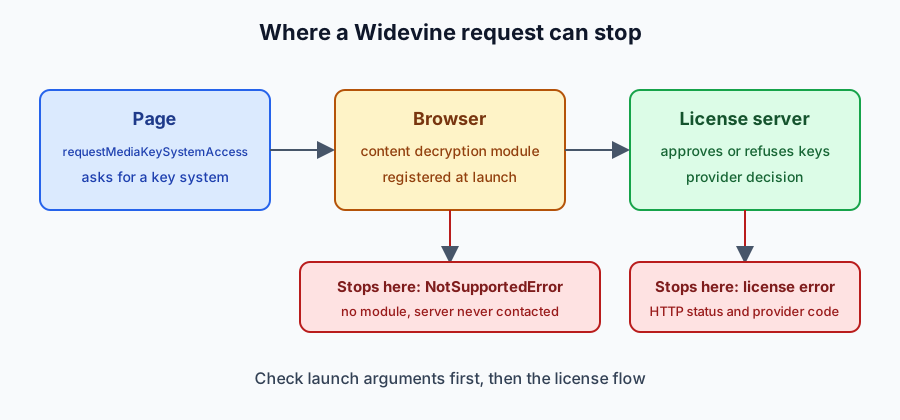
Protected streaming separates three jobs. The media player fetches encrypted segments. A license server decides whether this user and this device may decrypt them. A content decryption module, running inside the browser, holds the keys and performs the decryption so the page never sees them. The Encrypted Media Extensions (EME) specification is the interface between the page and that module. The page asks for a key system by name, such as com.widevine.alpha, and describes the media it wants to play. The browser answers with a MediaKeySystemAccess object or rejects the request.
When the answer is positive, the page creates MediaKeys, opens a MediaKeySession, and hands the encrypted stream's initialization data to the module. The module responds with a message event whose type is license-request. The page sends that opaque message to its license server, receives a response, and passes it back with session.update(). If the server approved the request, the session reports usable keys through keystatuseschange, and playback proceeds. The page never interprets the message itself; it is a conversation between the module and the license server, relayed by application code.
Two details matter for troubleshooting. First, the license request only exists after requestMediaKeySystemAccess succeeds, so a rejection at that first step means the license server was never contacted. Second, the request is bound to the module and the device: a server can only make decisions from what the module says about itself, so the same site may answer differently for two browsers that both have a module installed.
Widevine also defines security levels. Level 3 keeps decryption in software. Levels 2 and 1 use trusted hardware to different degrees. In EME this appears as a robustness string in the requested capabilities, for example SW_SECURE_CRYPTO, SW_SECURE_DECODE, or HW_SECURE_ALL. A site chooses the strongest level it needs for a given resolution; a browser that supports only the software levels may be served a lower resolution or refused for premium content. That is a product decision by the content provider, and it is visible to you as a robustness result in the probe below.
A robustness result describes what the module is willing to negotiate in this environment. It is not a promise that a particular title will play. Providers apply their own rules by title, region, account, and device class, and the probe cannot see those rules. In the other direction, an unsupported hardware level is not a defect in your setup. Many desktop environments simply have no hardware-secure path, and a provider that serves ordinary content at software levels will work there.
Why a default automated launch reports no support
The module is not just a file in the browser's folder: in this measurement its availability depended on the component updater. Automation frameworks commonly start the browser with a set of defaults meant to make runs quiet and repeatable. Playwright's default argument list for Chromium includes --disable-component-update, which tells the browser not to run its component updater. That is a sensible default for a test runner that does not want background network activity. It also has a side effect that is easy to miss: a freshly created profile launched this way reported no Widevine support in this measurement.
Check the binary before the arguments
Launch arguments only matter once the binary can carry a module at all. Open-source Chromium builds typically do not include the Widevine module; Google Chrome does. A suite that launches a bundled Chromium build is likely to report no support whatever arguments it passes (this measurement covered installed Chrome only), and the fix there is to launch an installed Chrome build instead. Playwright exposes this as the channel option, and other drivers accept an executable path or an equivalent setting. Print the product name and version at the start of the run so the binary is never an unstated assumption.
A temporary profile adds one more factor. It starts clean on every run, so anything that depends on first-run registration repeats each time, and a result from a long-lived desktop profile is not evidence about a CI container that creates a new directory per job. Compare like with like: new profile against new profile, or persistent profile against persistent profile.
The measurement
The measurement below isolates that argument. It was run on 2026-10-14 with Google Chrome 155.0.8059.80 on macOS, driven by Playwright 1.58.2, loading an ordinary HTTPS page and calling navigator.requestMediaKeySystemAccess with a single H.264 capability. Each row is a separate launch with a new temporary profile.
| Launch | Mode | Result for com.widevine.alpha |
|---|---|---|
| Playwright default arguments | headless | NotSupportedError for every configuration |
| Playwright default arguments | headed | NotSupportedError for every configuration |
--disable-component-update removed | headless | default, SW_SECURE_CRYPTO, SW_SECURE_DECODE supported; HW_SECURE_ALL not supported |
--disable-component-update removed | headed | same as headless |
| Plain Chrome, fresh profile, no framework | headed | default, SW_SECURE_CRYPTO, SW_SECURE_DECODE supported; HW_SECURE_ALL not supported |
Two observations follow. The result did not depend on headless versus headed in this measurement, so advice that blames headless mode for missing DRM is incomplete at least for this Chrome version. And the hardware-backed level was reported as unsupported on this machine even when the software levels worked, which is the expected shape for a desktop browser without a hardware-secure path; do not read it as a failure of the setup. For how headless and headed launches relate to the same profile, see Headless and Headed Browser Profile Consistency, which covers keeping the two modes aligned.
The measurement shows an effect, not the internal cause. Chrome's component system is Chrome's own, and a different version or operating system may behave differently. What you can rely on is the method: change one launch argument, run the same probe, and compare.
Reproducing the comparison in your own suite
With Playwright, the argument is removed through ignoreDefaultArgs. Keep everything else identical between the two runs, including the page origin and the profile type, so the argument is the only difference.
import { chromium } from 'playwright';

const variants = {
  playwrightDefaults: {},
  componentUpdateEnabled: { ignoreDefaultArgs: ['--disable-component-update'] },
};

for (const [label, options] of Object.entries(variants)) {
  const browser = await chromium.launch({ channel: 'chrome', headless: true, ...options });
  const page = await browser.newPage();
  await page.goto('https://example.com/');
  const supported = await page.evaluate(() =>
    navigator
      .requestMediaKeySystemAccess('com.widevine.alpha', [
        {
          initDataTypes: ['cenc'],
          videoCapabilities: [{ contentType: 'video/mp4; codecs="avc1.42E01E"' }],
        },
      ])
      .then(
        () => true,
        () => false
      )
  );
  console.log(label, supported);
  await browser.close();
}
Re-enabling the component updater has costs. The browser may contact update servers during a run, which matters in an offline CI network or in a suite that asserts on outbound requests. It can also make runs less repeatable if a component version changes between two executions. Decide whether your suite needs real DRM playback at all. If only a few journeys do, enable it for those projects and leave the quiet defaults on for the rest, and record the browser build next to each result so a difference between runs has a visible explanation.
Limits of this measurement
The measurement covers one browser build on one operating system with one framework version. It tested the com.widevine.alpha key system and one H.264 capability. It did not play content, did not contact a license server, and did not test Puppeteer, Selenium, or other drivers, which may start the browser with different defaults. It also did not test BotBrowser itself; statements about BotBrowser in this article come from its public documentation, linked below, and should be checked against the build and entitlement you actually use. For driving a browser profile from Selenium rather than Playwright, see Selenium Browser Profile Integration and Session Ownership, which covers how the session is owned and launched.
Browser updates change these behaviors. Chrome may change how the module is registered or which launch arguments affect it, and Playwright may change its default argument list. Repeat the probe after upgrading either, and keep the script and its output with your test notes so a change shows up as a diff rather than as a surprise.
A probe you can run and how to read it
The following script asks for the default configuration and three robustness levels, plus a persistent license session, then prints the outcome for each. It uses only standard EME calls, runs on any page served over HTTPS, and does not contact a license server. Run it in your own automation context before blaming a streaming site.
const configs = {
  default: { robustness: undefined, sessionTypes: ['temporary'] },
  SW_SECURE_CRYPTO: { robustness: 'SW_SECURE_CRYPTO', sessionTypes: ['temporary'] },
  SW_SECURE_DECODE: { robustness: 'SW_SECURE_DECODE', sessionTypes: ['temporary'] },
  HW_SECURE_ALL: { robustness: 'HW_SECURE_ALL', sessionTypes: ['temporary'] },
  persistent: { robustness: undefined, sessionTypes: ['persistent-license'] },
};

const results = {};
for (const [name, cfg] of Object.entries(configs)) {
  const capability = { contentType: 'video/mp4; codecs="avc1.42E01E"' };
  if (cfg.robustness) capability.robustness = cfg.robustness;
  try {
    const access = await navigator.requestMediaKeySystemAccess('com.widevine.alpha', [
      {
        initDataTypes: ['cenc'],
        sessionTypes: cfg.sessionTypes,
        videoCapabilities: [capability],
      },
    ]);
    results[name] = `supported (${access.getConfiguration().videoCapabilities?.[0]?.robustness || 'default'})`;
  } catch (error) {
    results[name] = error.name;
  }
}
console.table(results);
Expected result on a browser with a registered module: the default row and at least one software level report supported. On a browser without one, every row reports NotSupportedError. The measurement above did not test persistent-license sessions; if the persistent row fails while the others pass, compare with a plain launch of the same build before drawing conclusions. Keep the probe's inputs fixed between runs: the same page origin, the same codec string, the same robustness list. If you change two things at once, a different outcome has two possible causes, and you will not know which one mattered.
Treat the outcome as a short decision tree.
- Every row is
NotSupportedError. The browser does not expose the key system for these capabilities. Check how the browser was launched and which arguments were passed. Compare with a plain launch of the same build and a fresh profile. If the plain launch works and the automated one does not, the difference is in the launch arguments or the profile, not in the page. TypeErrororSecurityError. ATypeErrormeans the method is missing because the page is not a secure context; aSecurityErrormeans a permissions policy blocks the API. Serve the page over HTTPS or fromlocalhostand check the embedding frame'sallowattribute.- The default row passes and a higher robustness row fails. The module is present but only at a lower level. A provider that requires a higher level will refuse or downgrade; that is a policy decision on their side. Record the highest level your environment supports and compare it with the provider's documentation.
- The request passes but the license call fails. The browser has done its part: the
license-requestmessage was generated, and the failure is in what the server did with it. An HTTP error, a rejected account, a region restriction, or an expired entitlement are all provider-side conditions. Log the HTTP status and the provider's error code, not the opaque license message itself, which has no diagnostic value to a person. - Playback starts and then stops. Look at
keystatuseschangeon the session. Keys can move toexpired,output-restricted, orinternal-error. Output restrictions in particular are about the display path, for example a protected output requirement that a virtual display does not satisfy, which again is a statement about the environment.
A checklist for a CI job
- Pin the browser build and the framework version, and print both at the start of the job.
- Run the probe first and fail fast with a clear message when the default row is unsupported, so a missing module is never reported as a streaming-site failure.
- Store the probe table as a job artifact next to the browser version.
- Keep availability checks and playback checks apart. Availability needs no account and no network access to a provider. Playback needs an entitled test account and belongs in a separate, clearly labeled job.
- Keep license messages, tokens, and cookies out of logs and artifacts. Log status codes and error names instead.
- Re-run the probe after every browser or framework upgrade and treat a changed table as a review item, not as noise.
Two habits keep this work reproducible. Capture the browser build and operating system next to every result, because the behavior depends on both. And test with content you are entitled to play, using the provider's own test assets where they exist; a failure on a production title tells you less than a failure on a title designed for diagnostics.
What BotBrowser does and does not do
BotBrowser's documentation describes Widevine support as an optional capability with specific limits. Widevine integration requires an ENT Tier2 license, and the documentation describes how the module is provided for a given build and entitlement; check that guide for your release, because this article does not assume how the module reaches your build. When a profile enables the capability, BotBrowser reports DRM capability results that are consistent with the profile's platform identity: a Windows profile reports Windows-appropriate behavior and an Android profile reports Android-appropriate behavior. For how to judge whether a profile behaves consistently across operating systems, see How to Evaluate Cross-Platform Browser Consistency Before Deployment, which covers the checks to run before rollout.
For license challenges, the --bot-widevine option selects a policy per context: stub is the profile-backed default, send allows the normal challenge when supported, block suppresses license requests, and no-cdm disables module exposure for the context. The policy is entitlement and profile dependent and must be applied before the first page or worker starts.
The four values map to test goals as follows.
| Goal | Policy | What the documentation says it does |
|---|---|---|
| Keep capability reporting consistent with the profile | stub | The profile-backed default policy for license challenges |
| Exercise the real license flow with an entitled account | send | Allows the normal challenge when supported |
| Confirm the page recovers when licensing fails | block | Suppresses license requests, so the page's error path runs |
| Confirm the page handles a browser without DRM | no-cdm | Disables module exposure for the context |
Read that list for what it is. It lets a team make DRM behavior a deliberate, repeatable property of a test context instead of an accident of launch arguments. It does not make a missing module appear, it does not change what a license server decides, and it does not give access to protected content that the account is not entitled to play. If your probe reports NotSupportedError and the profile policy is send, the next question is still whether a module is installed and registered for that browser build.
This article is about diagnosing availability. It does not describe how to extract keys, capture decrypted streams, or defeat a provider's protections, and BotBrowser's documentation does not either. Content protection is a contract between a rights holder and a viewer; a testing environment exists to confirm that a legitimate user's setup works, not to remove the protection.
Conclusion
Widevine playback problems in automated browsers can be available-or-not problems at the first EME call, long before any license server is involved. In the measurement here, one default argument that disables component updates was the whole difference between no support and software-level support, in both headless and headed mode. Run the probe, change one launch variable at a time, and read each result as a fact about the browser. Then debug the provider's license flow. BotBrowser can make DRM capability and license-challenge behavior a controlled part of a profile when your build and entitlement include Widevine support; it does not replace the entitlement or a license server's decision.
Next reading
Continue with Widevine DRM setup for BotBrowser for the configuration side, DRM capability as a fingerprint signal for why capability reports must stay consistent, and MIME and codec support signals for the codec side of media capability checks.
Public sources
Related Articles
DRM Fingerprinting: What EME and Widevine Queries Reveal
PlatformWhat Is Widevine DRM? Headless Browser Setup and Privacy
PlatformWebAssembly Feature Detection and Module Portability
PlatformHeadless and Headed Browser Profile Consistency
PlatformHow to Evaluate Cross-Platform Browser Consistency Before Deployment
Getting StartedSelenium Browser Profile Integration and Session Ownership
Take BotBrowser from research to production
The guides cover the model first, then move into cross-platform validation, isolated contexts, and scale-ready browser deployment.