Frame Rate Fingerprinting: Refresh Rate and Video Timing
How requestAnimationFrame timing, display refresh rate, and video playback cadence work as fingerprint signals, and how BotBrowser sets display FPS and video FPS.
BotBrowser Team
Prefer the maintained product doc?
This article has a matching page in the docs center. Use the docs for the canonical setup flow, current flags, and long-term reference.
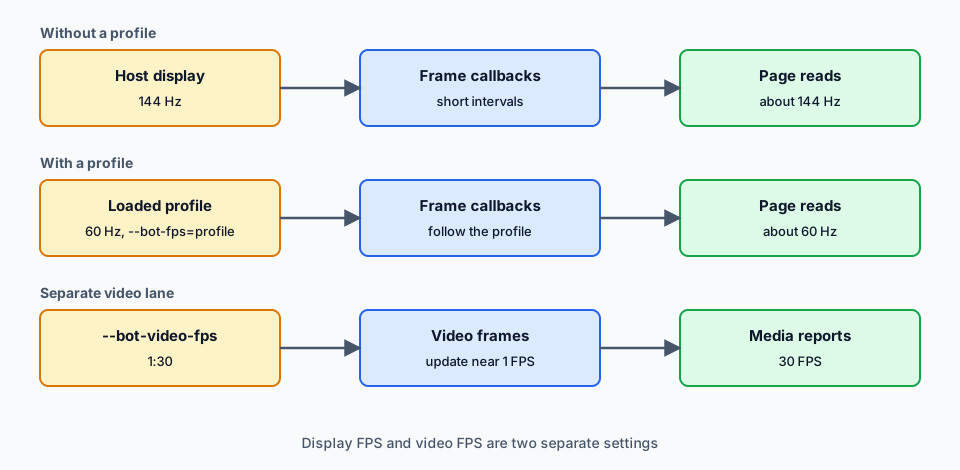
The callback intervals of requestAnimationFrame reveal the display refresh rate, and a page can read them without a prompt. BotBrowser can make that timing follow the loaded profile, a fixed number or the host with --bot-fps, and can lower video cadence with --bot-video-fps; both are ENT Tier2 controls, profiles without Video FPS Control ignore the video flag, and a lowered video cadence is also what screenshots and pixel sampling see.
TL;DR
Leave --bot-fps on profile unless you deliberately test another display class, and use values real displays have, such as 60, 120 or 144. Treat --bot-video-fps as a separate workload choice: 1:30 suits background media, while screenshots and frame comparisons need a higher actual value or no flag.
Contents
- How requestAnimationFrame reveals the refresh rate
- Why refresh rate is a hardware signal
- Why wrappers and extensions leave gaps
- Setting display frame timing
- Video playback cadence and CPU
- Choosing values and checking the result
How requestAnimationFrame reveals the refresh rate
When a page calls requestAnimationFrame(callback), the browser runs the callback before the next repaint and passes it a DOMHighResTimeStamp that marks the start of the frame. The MDN reference describes this contract and notes that callbacks normally match the display refresh rate. Subtracting consecutive timestamps gives the frame interval, and dividing one second by that interval gives the rate.
A reliable estimate needs only a short run. Collecting a few dozen consecutive timestamps and averaging the intervals smooths out single slow frames, and the whole measurement finishes in a fraction of a second while the visitor sees nothing. It has to run in a visible tab, because browsers usually pause or slow requestAnimationFrame for pages in the background.
Real measurements are noisy. A busy page occasionally misses a frame, which shows up as one long interval among many regular ones, and a single sample can land on that outlier. Taking the median or the average over a longer run gives a steady figure, and the figure usually sits close to a familiar value such as 60, 90, 120, or 144 Hz. That stability is what makes the number useful to a site that wants to recognize a returning device.
CSS animations and transitions advance on the same display cycle. A one-second @keyframes animation produces roughly one frame per refresh, so it moves in finer steps on a 144 Hz display than on a 60 Hz one. The CSS specification does not promise frame-for-frame accuracy, but the pace at which an animation progresses still follows the display. This matters later, because a page can read the rate from requestAnimationFrame and from an animation and expect both readings to agree.
Variable refresh rate adds another dimension. Displays with G-Sync, FreeSync, or ProMotion can change their rate with content, for example by dropping toward a lower rate when little is moving on screen. A page that watches long enough sees not only a base rate but also the way the rate shifts, and that pattern differs from the steady cadence of a fixed-rate panel.
Multi-monitor setups add a last wrinkle. When a window moves from a 60 Hz monitor to a 144 Hz monitor, callback intervals change at that moment. A page that tracks intervals over a session can notice the move, which says something about the hardware layout behind the browser window.
Why refresh rate is a hardware signal
Refresh rate belongs to the physical display and the compositor that drives it. It does not change when you clear cookies, open a private window, or switch networks. A visitor on the same machine may report a similar cadence, but load, variable refresh and display changes can move the observed intervals between sessions.
The signal also carries more information than it used to. Not long ago almost every consumer monitor ran at 60 Hz, so the number told a site very little. Today panels ship at 60, 75, 90, 120, 144, 165, 240, and 360 Hz, and phones and laptops with adaptive rates such as ProMotion add further variation. A visitor on a 165 Hz monitor belongs to a much smaller group than a visitor on 60 Hz, so the value helps narrow down which devices a visit could come from. Mobile browsers behave the same way: 60, 90, and 120 Hz screens all exist, and many modern phones switch between rates while running.
Refresh rate is one hardware-linked signal among several display signals, and it is not proof of identity on its own. Its weight comes from combination. Together with screen size, color depth, device pixel ratio, and GPU output, it contributes to a hardware description that is far more specific than any single value. The screen and window fingerprinting guide covers the neighboring display signals.
Several browser features expose related display signals. requestAnimationFrame intervals and CSS animation progress follow the display timing path, while reported display properties describe the surrounding window and screen state. A privacy measure that changes only one of them can leave the others pointing at a different hardware context.
The same principle matters for teams that run browsers on mixed hardware. Headless hosts have no physical display, and virtual machines and containers often report timing shaped by host load rather than by any real monitor. A profile describes a device with a particular refresh rate, and page-visible timing that disagrees with the profile is a mismatch between the claimed device and its observed behavior. A 120 Hz phone profile whose callbacks arrive at a 60 Hz cadence is one example.
Why wrappers and extensions leave gaps
Frame rate is a local hardware property that the browser measures inside its own display cycle, so tools that act elsewhere do not reach it. A VPN or any other network tool changes the route of requests and has no effect on callback intervals. Private browsing changes where data is stored and not how the display refreshes, so a measurement in a private window matches the one in a normal window.
Extensions and page scripts that change requestAnimationFrame have more to work with, but they run into limits. Three patterns are common, and each leaves a visible gap.
- Throttling the callback. A script can wrap the API and call the original callback at a lower target rate. Legitimate animations then stutter, and CSS animations keep running at the real display rate, so the two timing sources disagree.
- Rewriting timestamps. Changing the
DOMHighResTimeStamphanded to callbacks can imitate another rate, butperformance.now(),Date.now(), and CSS transition timing continue to report the original cadence. - Blocking the API. Disabling
requestAnimationFramebreaks the many web applications that use it to draw.
The common thread is that these tools sit at the JavaScript layer while the display rate shows up in several places. Changing one place without the rest produces an inconsistency, and an inconsistency contradicts the device the profile describes.
Developer settings in some browsers can cap the frame rate. A cap limits how fast the browser renders, but it is a ceiling and not a chosen target. You cannot ask for a particular rate per session, a cap cannot raise the rate above what the host display provides, and the throttling can show up as visible artifacts. A profile that declares 120 Hz cannot be matched from a 60 Hz host this way.
Setting display frame timing
BotBrowser supports display frame timing through --bot-fps, which accepts profile, real, or a number. The flag is an ENT Tier2 control, so it needs a profile with ENT Tier2 enablement. With it set, requestAnimationFrame timing follows the chosen rate instead of whatever the host display happens to run at.
Profile mode
In profile mode, the default, BotBrowser reads the refresh rate stored in the loaded profile and matches requestAnimationFrame timing to it.
chromium-browser \
  --bot-profile="path/to/profile.enc" \
  --bot-fps=profile
A profile describes a target device. One captured from 60 Hz hardware reports a 60 Hz cadence, and one captured from a 120 Hz or 144 Hz device reports the faster cadence, whatever the host display runs at. For most work this is the right choice, because the refresh rate stays tied to the rest of the device description and needs no per-run decision.
Fixed value
A number sets an exact rate, and frame timing and rendering intervals follow it on any host hardware.
chromium-browser \
  --bot-profile="path/to/profile.enc" \
  --bot-fps=60
Use it when a fleet mixes high-refresh monitors with headless hosts whose native timing is inconsistent, and you want one cadence everywhere. Pick values that real displays have, such as 60, 75, 90, 120, 144, 165, or 240. A value like 73 or 137 matches no monitor a visitor is likely to own, so it would contradict the display the profile describes.
Real mode
The real value uses the native rate of the host display.
chromium-browser \
  --bot-profile="path/to/profile.enc" \
  --bot-fps=real
This suits cases where the host hardware already matches the profile target. It is also a handy diagnostic. Running the same page with real and with profile shows whether instability comes from host rendering load or from the profile settings.
The --bot-fps flag governs display and runtime timing only. Video playback has its own control, described next, so a page can keep a 60 Hz display cadence while its video elements update less often.
Video playback cadence and CPU
Video elements keep decoding and painting frames even when a workflow only reads text, network responses, DOM state, or an occasional screenshot. On a monitoring page, a queue dashboard, or a media-heavy catalog, that decoding can be the largest single cost per tab, and it grows with the number of tabs.
BotBrowser supports --bot-video-fps=<actual>[:<reported>] for this case. It is an ENT Tier2 control and works on profiles with Video FPS Control enabled. Profiles without it ignore the flag.
chromium-browser \
  --bot-profile="path/to/profile.enc" \
  --bot-video-fps=1:30
The flag takes three forms.
--bot-video-fps=1decodes and renders video near 1 FPS and reports 1 FPS.--bot-video-fps=1:30renders video near 1 FPS while media reporting uses 30 FPS.--bot-video-fps=1:realrenders video near 1 FPS and reports the media's own reported cadence where available.
The first value is the actual visual cadence, which controls how often video frames update. The second value is the media reporting policy, and leaving it out reports the actual value. The real setting keeps reported values aligned with the cadence the media reports, not with the throttled actual cadence.
Pixel output follows the actual cadence, and that is the one limit to plan around. A workflow that samples video pixels frame by frame, or takes screenshots that must show fresh video content, sees the lowered cadence. For those workflows choose a higher actual value such as 5:30 or 10:30, or leave the flag off. A screenshot that shows video at the lower cadence is the configured behavior, not a fault.
The same reasoning applies to any check that judges playback quality. A test that counts dropped frames, verifies smooth playback, or compares consecutive video frames measures the actual cadence, so it needs the full rate and should run without --bot-video-fps. The flag fits the opposite case, where the video is background material and the work happens in the DOM, the network, or the page text.
The public BotBrowser benchmark measures the effect on a video-heavy workload. The test used a Linux x64 official build in headless mode, with local AVC video at 640 by 360 pixels and 30 FPS in every element, a 10 second warm-up, a 30 second sample window, and 3 repeats per setting. The baseline policy 30:30 was compared with 1:30.
| Concurrent videos | Baseline average CPU | 1:30 average CPU | Reduction |
|---|---|---|---|
| 8 | 33.96 percent | 9.70 percent | 71.43 percent |
| 16 | 61.20 percent | 12.10 percent | 80.24 percent |
| 24 | 76.49 percent | 13.81 percent | 81.95 percent |
These figures describe one workload on one platform. CPU use varies with host, driver, codec, and page content, so read the 71 to 82 percent range as a reference from a video-heavy test where lower visual cadence was acceptable, not as a saving to expect everywhere. The Video FPS Control benchmark lists the full setup.
When both controls are used together, the display runtime keeps its 60 Hz cadence while video elements update less often.
chromium-browser \
  --bot-profile="path/to/profile.enc" \
  --bot-fps=60 \
  --bot-video-fps=1:30
Choosing values and checking the result
Treat display FPS and video FPS as two decisions with different owners. Display FPS is part of the device description, so it should match the loaded profile unless you deliberately test a different display class. A 60 Hz office laptop profile, a 120 Hz mobile profile, and a high-refresh desktop profile should not be mixed casually, because frame timing sits beside screen size, device pixel ratio, GPU output, and animation timing. The profile management guide covers how profiles are stored and rotated.
Video FPS is an operational choice. Start with a conservative value: 1:30 when occasional visual updates are enough, and a higher actual cadence when screenshots need fresher frames. Frame-by-frame comparison of video pixels is the case that rules out very low values.
For fleets, write the policy down per workload. Keep one policy for pages that need full visual playback, one for background pages that carry media, and one for screenshot workflows. A written policy makes later performance changes easy to review and keeps workload tuning separate from profile consistency decisions.
To check the result, measure inside a visible tab. Collect timestamps from about sixty consecutive requestAnimationFrame callbacks, average the intervals, and compare the resulting rate with the configured one. Then compare it with a reading taken from a CSS animation. For video, compare CPU use and visible cadence with and without --bot-video-fps. Headless and headed runs can differ under load, so validate both with the same profile and flags. The headless and headed consistency guide covers those differences.
Turn timing samples into a failure check
This sampler records 120 intervals from consecutive animation callbacks. Run it in the page's DevTools console while the tab stays visible; the median estimates the regular cadence, while the 95th percentile exposes a tail of delayed frames that an average can blur.
const intervals = [];
let previous;
let valid = document.visibilityState === 'visible';
if (!valid) console.log('sample invalid: open the page in a visible tab');
document.addEventListener('visibilitychange', () => {
  if (document.visibilityState !== 'visible') {
    valid = false;
    console.log('sample invalid: tab became hidden');
  }
});
function sample(timestamp) {
  if (!valid) return;
  if (previous !== undefined) intervals.push(timestamp - previous);
  previous = timestamp;
  if (intervals.length < 120) {
    requestAnimationFrame(sample);
    return;
  }
  const sorted = [...intervals].sort((a, b) => a - b);
  const middle = sorted.length / 2;
  const medianIntervalMs = (sorted[middle - 1] + sorted[middle]) / 2;
  const p95IntervalMs = sorted[Math.ceil(sorted.length * 0.95) - 1];
  console.log(
    JSON.stringify({
      visible: valid && document.visibilityState === 'visible',
      intervalCount: intervals.length,
      medianIntervalMs: Number(medianIntervalMs.toFixed(2)),
      p95IntervalMs: Number(p95IntervalMs.toFixed(2)),
      estimatedHz: Number((1000 / medianIntervalMs).toFixed(1)),
    })
  );
}
if (valid) requestAnimationFrame(sample);
Read the sample as a branch check, not as a device verdict:
| Observation | What it establishes | Next check |
|---|---|---|
| The tab becomes hidden before 120 intervals finish | Background throttling invalidated this sample | Keep the tab visible and run the same capture again |
| The median is near the selected rate but p95 is much longer | The regular cadence is present, with delayed frames in the tail | Repeat on an idle host and inspect CPU/GPU load before changing the profile |
The median follows real but not the profile's declared rate | Host timing and profile timing disagree | Confirm the active --bot-fps argument and the profile's display rate |
requestAnimationFrame matches while video frames advance slowly under 1:30 | Display cadence and actual video cadence are separate as configured | Remove the video limit for frame-by-frame pixel or playback-quality checks |
The existing troubleshooting list covers drift and slow-looking video. These rows add a reproducible way to distinguish an invalid background sample, a jitter tail, a profile-versus-host mismatch, and an intentional video limit before changing either control.
Most problems fall into a few patterns.
- Measured rate drifts from the configured value: check CPU and GPU saturation on the host, because heavy rendering load can add jitter around the target rate.
- The profile says 120 Hz but the measurement shows close to 60: confirm that
--bot-fpsis not pinned to60and check the launch arguments of the running process. - Video reports 30 FPS but looks slow: this is expected with
--bot-video-fps=1:30, because reported FPS and visual cadence are separate by design. - The video flag has no effect: confirm that the profile has Video FPS Control enabled, because profiles without it ignore the flag.
Frame timing is one part of the execution timing a page can observe. The performance timing guide covers the timing signals that sit next to it.
BotBrowser supports setting display frame timing with --bot-fps (profile, real, or a fixed value) and video playback cadence with --bot-video-fps on profiles with Video FPS Control enabled, so requestAnimationFrame timing follows the selected profile and video-heavy pages can use less CPU. For you, that means a refresh rate that matches the device you chose and a lower CPU bill for pages full of video, with display FPS and video FPS decided separately. BotBrowser does not make these controls available without ENT Tier2 profile enablement, does not apply --bot-video-fps on profiles without Video FPS Control, cannot guarantee the same CPU savings outside the tested workload, and does not replace choosing a profile whose display, GPU, and timing signals are coherent.
Beyond the reference page
The reference page describes display controls. The added comparison records requestAnimationFrame intervals separately from video cadence under profile, fixed, and real modes. If a page animation is stable but video is not, troubleshoot the media pipeline and host load instead of changing the display value.
Sources
Practical conclusion
Decide display FPS and video FPS separately: display timing should match the profile, while video cadence is a per-workload policy. Verify by averaging about sixty requestAnimationFrame intervals in a visible tab and comparing with a CSS animation reading.
This article is part of the guide: What Is a Browser Fingerprint?
Related Articles
--bot-performance-timing: Browser Timing Signals and Fingerprinting
FingerprintAudio Fingerprinting Explained: How AudioContext Tracks You
FingerprintBrowser Privacy Validation Across Rendering Backends
Fingerprintperformance.now: Timer Resolution and Fingerprinting
Fingerprintnavigator.hardwareConcurrency: Real CPU Core Count
FingerprintDRM Fingerprinting: What EME and Widevine Queries Reveal
Take BotBrowser from research to production
The guides cover the model first, then move into cross-platform validation, isolated contexts, and scale-ready browser deployment.