Browser Automation Signals and Consistency in Playwright
Learn which automation signals Playwright and Puppeteer sessions can expose to pages, why late JavaScript patches are fragile, and how to verify a BotBrowser setup yourself.
BotBrowser Team
Want the structured docs for Deployment?
This article lives in the editorial library. For step-by-step setup, reference material, and ongoing updates, jump into the docs section.
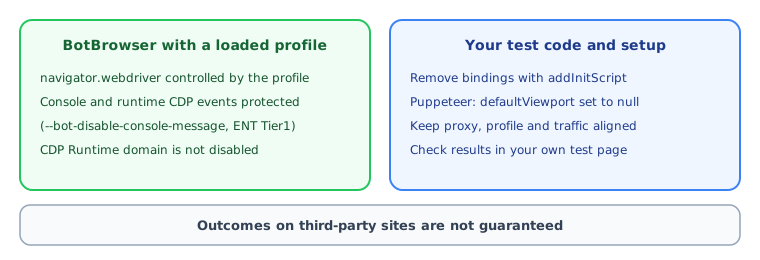
Playwright and Puppeteer sessions can expose several browser-automation facts to a page: the WebDriver navigator.webdriver signal, framework-created page bindings, observable effects of Chrome DevTools Protocol (CDP) subscriptions, and differences between headless and headed runs. With a profile loaded, BotBrowser documents control of navigator.webdriver and, on ENT Tier1, protection for specified console and runtime CDP event paths. Your own test code still owns framework bindings, viewport settings, and consistent proxy, profile, and traffic behavior. The sections below explain each boundary and show how to verify your own authorized test environment without treating any site's classification as a guarantee.
Which automation signals a page can see
An automation framework needs hooks into the browser to work. Those hooks live in the same browser that renders the page, so some of them can be read by JavaScript running there. Four categories matter in practice, and each one has a different owner when you want a consistent test setup.
The navigator.webdriver flag
The W3C WebDriver specification defines navigator.webdriver as a way for a page to learn that the browser is under automated control. It is a transparency mechanism, not a complete detector. A page can read the property directly, which makes it a useful first regression check, but its value does not prove that a session is safe, human, or accepted by a third party.
Framework bindings
Playwright adds helper names such as __playwright__binding__ and __pwInitScripts to the page context so the framework can talk to the page. These names exist because of how the framework communicates with the browser. They are design requirements, not defects. Puppeteer does not inject the same bindings, so its main consistency concern is different: if its default viewport override stays active, the window dimensions no longer match the profile.
CDP side effects
Playwright and Puppeteer both drive Chromium over CDP. Some runtime consistency checks can infer a CDP connection from changes that automation can cause in console or exception behavior, for example when a client enables the Console or Runtime domains. This signal is about behavior, not about a visible property, so a clean property check does not rule it out.
A practical consequence follows from the protection described later: when console suppression is active, your automation client does not receive forwarded page console messages. Teams that rely on a console listener in their own scripts should plan for that before the first production run.
Headless and headed differences
A headless session and a headed session can differ in display geometry, plugin lists, and graphics behavior. A profile supplies the same intended values to both modes, but the host display service and graphics backend still influence what a page measures. Compare the modes you actually use in your own environment instead of assuming they match. The guide on headless and headed profile consistency describes a review method for this.
Why patching after page load is fragile
A common approach is a community plugin that runs inside the page and changes values after the browser has started. It overrides navigator.webdriver with a JavaScript getter, deletes framework names from the global scope, and adjusts other properties. This approach has limits that matter for consistency.
First, it works in the same JavaScript world as the page. Whatever the browser reported before the script ran is replaced by a value defined from script, and the replacement can differ in shape from the browser's own implementation. A property that the browser never defined and a property that script deleted do not always look the same to later code.
Second, it has to be reapplied for every new page, frame, and context, and a patch may not reach every execution context. Each extra layer is another thing to keep in sync after a framework or browser upgrade. When the patch list grows, the risk is not only that one patch fails. The combination of patches can leave a session that no longer behaves like any real browser.
Third, a patch that changes one property does not address the others. Changing the User-Agent string, for example, does not touch navigator.webdriver, framework bindings, or CDP behavior, and it can create a mismatch between the browser identity you present and the environment that actually runs.
Some teams respond by compiling their own Chromium build with automation switches removed. That removes a category of signals at the source, but it also means maintaining a fork: rebasing on each Chrome release, resolving conflicts, and carrying long build times. For most teams, that investment is hard to justify next to a maintained browser that documents what it controls.
One narrow case of late patching remains reasonable. The addInitScript cleanup for the two Playwright names runs before any page script, and it removes only what the framework added. It is a small, documented step rather than a large override layer, and the BotBrowser documentation keeps it as part of the recommended setup.
What BotBrowser documents for automation consistency
BotBrowser documents the following controls for automation setups. Each row names the documented behavior and the tier where one applies, so you can decide which ones belong in your configuration.
| Control | Documented behavior | Tier |
|---|---|---|
Loaded profile (--bot-profile) | navigator.webdriver is controlled automatically; no extra flag is needed | Core |
--bot-disable-console-message | Keeps protected console and runtime events from changing page-visible behavior while CDP is connected; default on | ENT Tier1 |
--bot-disable-debugger | Ignores JavaScript debugger statements so a run does not pause | Core |
--bot-always-active | Keeps windows and tabs active when unfocused; default on | PRO |
--bot-port-protection | Keeps remote pages from detecting which services run on localhost ports | PRO |
--bot-script | Runs your script in a privileged isolated page context, with no external framework bindings or separate CDP client | Core |
The console flag deserves a precise reading. It protects the console and runtime event paths. It does not disable the CDP Runtime domain, so normal evaluation and exception handling remain available to your automation. Diagnostic sessions that intentionally turn the protection off with --bot-disable-console-message=false change CDP behavior, so treat them as a separate compatibility run and do not compare their results with production runs.
--bot-script is the option with the smallest framework footprint because it needs neither Playwright nor Puppeteer. If your workflow can be expressed as a script that runs inside the browser, it avoids framework bindings entirely. Use --bot-title when the page title shows the extension name.
Setting up Playwright and Puppeteer
Install playwright-core or puppeteer-core rather than the full packages. The full packages bundle their own Chromium download, which you do not need when you launch BotBrowser by path. Keep the profile, binary path, and proxy in environment variables or configuration so that every run records the same inputs.
import { chromium } from 'playwright-core';
const browser = await chromium.launch({
  executablePath: process.env.BOTBROWSER_EXEC_PATH,
  headless: true,
  args: [
    '--disable-audio-output',
    `--bot-profile=${process.env.BOT_PROFILE_PATH}`,
    '--proxy-server=socks5://user:pass@proxy.example.com:1080',
  ],
});
const page = await browser.newPage();
await page.addInitScript(() => {
  delete window.__playwright__binding__;
  delete window.__pwInitScripts;
});
await page.goto('https://example.com');
Create the page first, register the cleanup, and only then navigate. The init script must be in place before the first goto, or the page can run before the names are removed. Do not set viewport options in Playwright either, because the profile should control dimensions.
import puppeteer from 'puppeteer-core';
const browser = await puppeteer.launch({
  executablePath: process.env.BOTBROWSER_EXEC_PATH,
  headless: true,
  defaultViewport: null,
  args: [
    '--disable-audio-output',
    `--bot-profile=${process.env.BOT_PROFILE_PATH}`,
    '--proxy-server=socks5://user:pass@proxy.example.com:1080',
  ],
});
const page = await browser.newPage();
await page.goto('https://example.com');
In Puppeteer, defaultViewport: null is the important line. Without it, Puppeteer applies its own viewport and overrides the screen dimensions the profile provides, and a mismatched viewport is a consistency problem you created yourself.
Set the proxy with --proxy-server (or the per-context proxy option), not with framework-only proxy settings. BotBrowser aligns timezone, locale, and languages with the proxy region only when it routes traffic itself. A manual --bot-timezone, --bot-locale, or --bot-languages value overrides that mapping, while values left at auto keep following the proxy. If you load profiles from a directory with --bot-profile-dir, BotBrowser selects one profile at each startup, and the directory option cannot be combined with --bot-profile (the directory takes precedence if both are given).
On a Linux server, BotBrowser still needs a virtual display such as Xvfb even when you launch it with --headless, and the DISPLAY variable must be set for every browser process. Two PRO flags are worth knowing for long-running jobs. --bot-always-active is on by default and keeps windows and tabs in an active state when they are unfocused, which matches how a primary browser behaves. --bot-port-protection stops remote pages from learning which services run on local ports such as remote desktop or development servers. Neither flag changes how Playwright or Puppeteer connect, so you can add them to the launch arguments after the basic checks pass.
Verifying the setup in your own test environment
Verification is a regression check on your own configuration. It tells you whether a launch matches the documented behavior today and whether it still matches after you update BotBrowser, the profile, or the framework. It does not predict how any third-party site will treat a session.
Start by recording the inputs: BotBrowser version, profile file, launch arguments, framework version, headless or headed mode, and the proxy region. Without that record, a later difference cannot be tied to a change.
Then use a page you control to read a small set of values and compare them with what the profile and your launch settings are meant to produce:
navigator.webdrivershould befalseonce a profile is loaded.- The two Playwright binding names should be absent after the init script ran before navigation.
- The window and screen dimensions should match the profile, and the language and plugin entries should match the intended locale.
- Console behavior should match your intent: with ENT Tier1 defaults, your client's console listener should receive nothing from the page.
- Timezone and languages should follow the proxy region, or your explicit overrides.
When a value differs, the documentation points to a specific cause for each one:
| Observation | Likely cause | What to change |
|---|---|---|
navigator.webdriver returns true | The profile did not load | Check the --bot-profile path and file |
| Playwright binding names still present | The init script ran too late | Register addInitScript before the first goto |
| Console events still reach your client | Suppression is off, or the tier does not include it | Check the flag value and subscription tier |
| Viewport does not match the profile | A framework viewport override is active | Use defaultViewport: null in Puppeteer and avoid viewport options in Playwright |
| Timezone does not match the proxy region | The proxy is set only through framework options | Pass the proxy with --proxy-server or the per-context proxy |
A page that you own can serve as a second opinion on the same session. Read its output as information about your environment, not as a verdict from any third party. Findings that point to an inconsistency between profile, proxy, and locale are worth fixing even when no site ever complains.
For a pipeline, turn the list into assertions that fail the build when an expected value changes. Run them in the same mode your production job uses. If you operate both headless and headed jobs, run both. Keep the record of versions next to the result, so a failure after an upgrade is easy to trace to the component that changed.
A worked review of a failing run
Suppose a nightly job starts reporting that the language list on your test page no longer matches the profile locale. Start from the record, not from the flags. Compare the BotBrowser version, profile file, launch arguments, and proxy region with the last passing run. In this example only the proxy region changed, because the team moved the job to a different exit location.
The documentation explains the next step. Values left at auto follow the proxy, so the language list changed together with the region. If the team wants a fixed locale regardless of the exit location, it sets --bot-locale or --bot-languages explicitly and keeps the timezone on auto. After that change, the run repeats the same five checks and the record is updated. The outcome is a documented decision about which values follow the proxy and which are pinned, rather than a surprise discovered later.
Keeping proxy, profile, and traffic consistent
Automation signals are only one part of a coherent session. A Windows Chrome profile paired with a proxy in one country and a browser locale from another produces a mismatch unless you pin the locale or move the route. Decide which attributes should follow the route and which should stay fixed, write that decision down, and test it with the same routine you use for navigator.webdriver.
Traffic behavior belongs in the same review. A script that opens many pages at a pace no person would use, or that repeats identical navigation in a fixed rhythm, is a behavior pattern that no browser setting can change. BotBrowser does not replace that discipline. Keep request volume, timing, and account use within the rules of the sites you work with, and run only automation you are authorized to run.
Finally, use more than one profile when the work calls for separate environments. Reusing a single profile for every instance means every instance reports the same environment. --bot-profile-dir picks one file from a directory at each startup, which gives each launch a different profile without extra code, and you can still record which file a given run loaded.
Limits, Selenium, and practical questions
In your own Playwright or Puppeteer test pages, BotBrowser controls navigator.webdriver automatically once a profile is loaded, and with --bot-disable-console-message (an ENT Tier1 flag, on by default) it keeps protected console and runtime CDP events from changing what the page can observe, so you can verify these automation signals yourself with the checks above. The documented behavior is described in automation consistency. The limits are explicit: BotBrowser cannot guarantee how any third-party site classifies a session, does not disable the CDP Runtime domain, does not remove framework bindings for you (keep the addInitScript cleanup), and does not replace consistent proxy, profile, and traffic behavior.
Does BotBrowser work with Selenium? The documented setups use Playwright and Puppeteer. Selenium communicates through the WebDriver protocol, which can expose additional signals outside the CDP protections described here. BotBrowser still controls navigator.webdriver when a profile is loaded, but the console and runtime protection is scoped to the CDP paths.
Do I need a patch plugin on top? The documentation does not describe one as part of the recommended setup. A plugin that overrides the same properties adds a second source of values, which is a reason to test without it first. Add one only when a specific, verified gap remains.
Does --bot-disable-debugger change my debugging? Yes. debugger statements in page JavaScript are ignored, so a run does not stop on them. Leave the flag out of a session where you want the pause, and use it for unattended runs.
What if I need console output in production? Log at the application level, to files or an external service, instead of relying on CDP console forwarding. For short debugging work, set --bot-disable-console-message=false in a separate session.
How do I keep results stable across updates? Keep the BotBrowser binary, the profile, and the framework version in one release record. Rerun the checks above after any of them changes. Review the documentation for the flags you use whenever you update, because defaults and tiers can change between releases.
For setup guides, see Getting Started with Playwright and Getting Started with Puppeteer. For profile organization, see Profile Management.
Sources
Related Articles
Take BotBrowser from research to production
The guides cover the model first, then move into cross-platform validation, isolated contexts, and scale-ready browser deployment.