MediaDevices Identity and Virtual Camera Privacy in Browser Workflows
Plan camera and microphone permissions, device labels, and virtual camera workflows so media features remain useful, transparent, and privacy conscious.
Want the structured docs for Fingerprint?
This article lives in the editorial library. For step-by-step setup, reference material, and ongoing updates, jump into the docs section.
Media devices are part of a browser identity
Camera and microphone access is now a normal part of meetings, support desks, education, and product demonstrations. A browser page can ask for permission, list available media devices, and let a user select one for a call. Those actions create an identity surface that deserves the same care as language, storage, and network settings.
The goal is not to hide media capability. The goal is to make device access understandable, limited to the workflow, and consistent with the user's choice. A profile that expects a virtual camera should explain that choice. A context that does not need media should avoid requesting it. A meeting that uses a physical camera should show a clear device name and a clear permission state.
MediaDevices behavior can also vary across operating systems and browsers. A laptop may expose an integrated camera, an external camera, and a microphone array. A mobile device may expose front and rear cameras with different labels. A virtual camera may appear beside physical devices and may be created by an approved application. These differences are normal when they match the platform and the purpose.
For related profile planning, see mobile browser fingerprint consistency. For network communication policy, read WebRTC network identity and privacy.
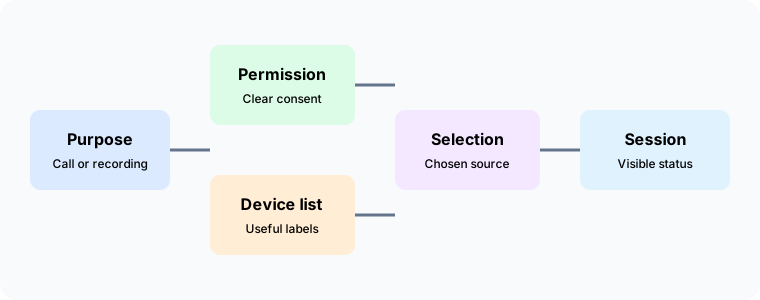
Begin with purpose and consent
Every media workflow should answer three questions before a browser asks for access. Why is a camera or microphone needed? Who will receive the resulting audio or video? What should happen when the user declines? The answers belong in product language and should be visible near the action that starts the session.
Purpose limits collection. A support call may need a microphone but not a camera. A demonstration may need a camera but not continuous recording. A settings page may need to show available devices without opening a live stream. Separating these cases keeps permission requests proportional and helps users understand the choice they are making.
Consent should be specific to the browser context and the task. A user who grants a microphone for one account should not assume that every tab can use it forever. Explain how the permission can be reviewed or withdrawn, and make the active state visible while a session is running.
The workflow owner should document the audience for the media. A call with a small support team has a different privacy expectation from a public demonstration. The profile can state the audience category without storing unnecessary recordings or device details.
Understanding the MediaDevices surface
The browser can expose a list of media inputs and outputs, subject to permission and platform rules. Device labels may be generic until the user grants access. Multiple cameras can have similar names. A microphone may be built into a laptop, a monitor, a headset, or an approved virtual source.
Treat the list as a user interface, not as a permanent identity record. Show labels that help a person choose a device, and avoid copying the entire list into analytics when the workflow does not need it. Device availability can change after a user plugs in a headset, closes a laptop lid, or switches networks.
The order of devices can also change. A workflow should not assume that the first item is always the preferred camera. Save a user choice only when the product has a clear reason and an appropriate retention policy. Let a user revisit the selection when a device is unavailable.
Permission state and device state are different. A device can exist but be unavailable to the page. A permission can be granted while the selected device is disconnected. Use separate status messages so a user understands whether to grant access, reconnect hardware, or choose another source.
Physical cameras and microphones
Physical devices often carry meaningful context. A front camera may be intended for a face-to-face call, while an external camera may frame a room or a document. A headset microphone may reduce background noise compared with a laptop microphone. These are user choices, not values a profile should silently change.
Give each device a friendly label while preserving enough detail for selection. Labels should be understandable to the person who owns the equipment. Avoid exposing serial numbers or other inventory detail in a general page when a short name is sufficient.
When hardware is shared, show the active source clearly. A user should be able to tell whether the meeting uses the built-in microphone, a headset, or another input. This is especially important in an office or classroom where multiple devices can be nearby.
Connection changes deserve a visible response. If a headset is removed, pause or switch according to the user's documented preference. Do not silently fall back to a microphone that has a different privacy meaning. A clear prompt gives the user control over the next step.
Virtual cameras in legitimate workflows
A virtual camera can provide a branded background, a composed presentation, a test pattern, or a feed from an approved production tool. These uses are common in customer support, training, accessibility, and media production. The workflow should state why the virtual source is needed and how a user can identify it in the browser list.
Virtual devices should be named clearly. A label such as “Presentation camera” helps a user distinguish it from a physical webcam. The label should not imply that a live person is present when the source is a prepared scene. Transparency reduces confusion for meeting participants and support staff.
The owning application should have a lifecycle. Start it before the browser session when the workflow requires a prepared feed, confirm that the browser sees the expected source, and close it when the task ends. A stale virtual device can confuse users and can remain available to unrelated contexts.
Access to the virtual source should follow the same permission policy as a physical camera. A user should consent before the browser opens it. The workflow should explain where the feed comes from, who can view it, and how to stop it.
Privacy review for virtual sources
Review the content of a virtual feed before use. A prepared scene may contain account details, internal documents, or a person's image. The owner should approve the scene and decide where it may be shown. A virtual source is a presentation choice, not a way to avoid ordinary privacy responsibilities.
Keep a short inventory of approved scenes when the organization operates several workflows. The inventory can include a friendly name, owner, audience, and retirement date. It does not need to retain a complete recording or a technical history of every browser session.
Test a scene with the same account and region policy as the production workflow. A camera preview may use a different crop or orientation on mobile and desktop. Record those expected differences so participants are not surprised when a mobile viewer sees a different frame.
Retire scenes that are no longer accurate. A stale training slide or an old support address can create a data exposure even when the camera permission is working correctly. Lifecycle review belongs alongside profile and account review.
Permission messaging that users can trust
Permission text should use the vocabulary of the task. Say “Allow microphone for this support call” when the user is joining a call. Avoid vague language that makes the browser dialog seem unrelated to the action. A concise explanation builds confidence without teaching a user to approve every prompt.
Explain the result of each choice. If a user declines the camera, the microphone may still work. If a user declines both, the call may continue as audio only or may be unavailable. The page should state the supported path instead of repeatedly asking for the same permission.
Make the active state visible. A camera indicator, selected device label, and stop control help a user understand what the page is doing. When the session ends, release the device and show that it is no longer active.
Accessibility is part of consent. Labels should work with screen readers, keyboard navigation, touch input, and high contrast settings. A person should be able to identify and change the selected device without relying on a visual preview alone.
Browser and operating system differences
Desktop browsers may show several camera and microphone choices at once. Mobile browsers may use a system picker or expose fewer controls. Build the workflow around the user's goal and adapt the presentation to the platform. Do not treat a different dialog as a failure when it still provides a clear consent path.
Operating systems can add their own privacy controls. A browser permission may be granted while the system blocks the camera. The status page should distinguish these layers and direct the user to the correct setting. Avoid asking users to change broad system permissions when a narrow browser choice is enough.
Updates can change device labels or permission timing. Recheck the workflow after a browser or operating system release and update the support notes. The purpose and audience should remain stable even when a dialog moves or a label changes.
Mobile orientation and background behavior can affect a camera session. Explain what happens when the user rotates the device, locks the screen, or moves to another app. A graceful pause is more trustworthy than a silent continuation that the user cannot see.
Keeping media identity coherent with the profile
Media settings should fit the profile purpose. A support context can permit a managed camera and microphone, while a reading context can keep them unavailable. The distinction should be visible in the context label and workflow documentation.
Regional and network policies still matter. A media session can use a communication route that differs from ordinary page traffic, so review the WebRTC policy with the route owner. The important question is whether the selected media posture is compatible with the privacy boundary the profile promises.
Device selection should not silently change account or region identity. A different camera does not make a context a different user. Keep media choices separate from account credentials and route policy, with separate owners when appropriate.
When a context is copied, review media permissions and selected devices. A copied permission can surprise a user on a new machine. Start with a clear consent state unless the organization has documented a managed handoff.
A practical test plan
Create one test journey for each approved media use. Start without permission, explain the purpose, grant the required device, change the selected source, and stop the session. Repeat the journey with permission denied and with the preferred device disconnected.
Test physical and virtual sources separately. Confirm that labels are understandable, that the preview matches the selected device, and that a user can stop the feed. For a virtual camera, confirm that the owning application closes cleanly and does not leave a confusing device behind.
Repeat on representative desktop and mobile platforms. Check orientation, keyboard and touch access, screen reader labels, and system permission behavior. Record expected differences in the support guide rather than attempting to remove them.
Review data handling at the same time. Confirm that analytics do not store unnecessary device lists or media content. Keep records limited to the permission outcome and operational details required to support the workflow.
Governance and lifecycle
Assign an owner for each media workflow. The owner approves the purpose, audience, devices, and retention policy. Support staff can operate the journey with a short guide and should not need access to recordings or unrelated account data.
Review device names and virtual scenes regularly. Remove entries that no longer exist, rename unclear sources, and retire prepared content that contains old information. A clean list reduces selection errors and makes the active source easier to explain.
Close permissions when the account or context is retired. Remove device assignments from shared documentation and follow the organization retention rules. A user should not return to an old context and find a camera silently active because its original task ended months ago.
Document incidents as product or privacy concerns, not as reasons to weaken consent. A broken preview may require a browser update or a device replacement. The solution should preserve the user's ability to understand and control media access.
Questions teams ask
Should every context show a camera?
No. Show or request a camera only when the workflow needs one. A context that never uses media can keep the capability unavailable.
Is a virtual camera less private than a physical camera?
Neither is automatically safer. Privacy depends on the content, audience, permission, and lifecycle. A clearly named approved virtual source can be appropriate for a presentation, while a physical camera can expose a private room.
Can a page remember a device choice?
Yes, when the user expects that convenience and the retention policy allows it. Provide a way to change the choice and handle a disconnected device clearly.
What if a user denies the microphone?
Respect the choice and explain the supported alternatives. The workflow may continue with text or video, or it may need to end. Do not repeatedly request access without a new user action.
How should virtual scenes be approved?
Give each scene an owner, audience, review date, and clear label. Retire scenes that contain outdated or unnecessary information.
Closing perspective
MediaDevices identity is a user experience and privacy decision. Define the purpose, request only the needed capability, label physical and virtual sources clearly, and make the active state visible. Android, iOS, and desktop can present different controls while sharing the same commitment to consent and data minimization.
Use browser permission fingerprinting for related context, and keep the media policy beside the profile brief. A transparent camera or microphone workflow helps users participate confidently and gives support teams a clear way to explain every device choice.
A review record for media access
Record the reason a workflow needs each media capability and the person who approved it. Note whether the source is physical or virtual, who can see the result, and when the permission should be reviewed. Avoid retaining recordings simply because a permission was granted. The record should describe the decision, while the media itself follows the organization retention policy.
Before a release, walk through the complete user journey: source selection, permission prompt, preview, call or capture, and stopping the stream. Check the experience on each supported platform. A permission that behaves differently on a phone and a desktop may be expected, but the interface should still make the active state and the stop action clear.
When a virtual source is shared by several teams, give it one owner and an explicit audience. Remove unused scenes and revoke access when the presentation or test ends. These small controls reduce accidental disclosure without preventing legitimate camera and microphone use.
Clear ownership also makes support faster when a source is unavailable or renamed.
It gives users a clear answer about who can change the active device during every supported session.
That clarity supports safer everyday operation.
Related Articles
Take BotBrowser from research to production
The guides cover the model first, then move into cross-platform validation, isolated contexts, and scale-ready browser deployment.