Proxy Launcher in BotBrowser: Profiles, Proxies, and Setup
Use BotBrowser Launcher to match profiles and browser versions, review proxy routes, manage runtime settings, and start consistent browser sessions.
BotBrowser Team
Want the structured docs for Getting Started?
This article lives in the editorial library. For step-by-step setup, reference material, and ongoing updates, jump into the docs section.
BotBrowser Launcher coordinates a profile, matching browser kernel, and network route, but it cannot guarantee site behavior or repair an invalid profile. The following launch decisions keep privacy and compatibility claims bounded. After launch, use the proxy egress verification runbook when you need two independent observations of the route.
TL;DR
- Match profile, kernel, route, and runtime policy before launch.
- Record selected versions and validate one real workflow after changes.
- Treat Launcher as configuration control, not proof that a site accepts the session.
Contents
- What the proxy launcher decides
- Memory, storage, and proxy settings
- Startup behavior and updates
- A first profile and common setups
- When Launcher is the right interface
- Troubleshooting and launch review
- Practical conclusion
BotBrowser Launcher is the desktop control surface for BotBrowser. It brings profile selection, browser kernel management, proxy configuration, and common runtime controls into one application. The result is a clearer launch process for teams that want browser privacy protection without maintaining a long command for every session.
The Launcher is available in the public BotBrowser repository and supports Windows, macOS, Ubuntu, and Debian. It does not replace the encrypted BotBrowser profile or the browser kernel. It connects those parts, records the settings for each named browser profile, and starts the selected combination.
That distinction matters when evaluating the product. A Launcher profile is the saved workspace you see in the application. A BotBrowser profile is the .enc file that defines the browser identity. A kernel is the matching browser executable. Keeping those three objects aligned is the first requirement for a predictable session.
What the proxy launcher decides
The proxy launcher workflow
The normal path has five decisions:
- Install or select a BotBrowser kernel for the current computer.
- Select a BotBrowser
.encprofile that matches the required browser family and version. - Create a named Launcher profile and assign the profile file.
- Add an optional proxy and verify its exit IP before launch.
- Review runtime controls, save the Launcher profile, and start the browser.
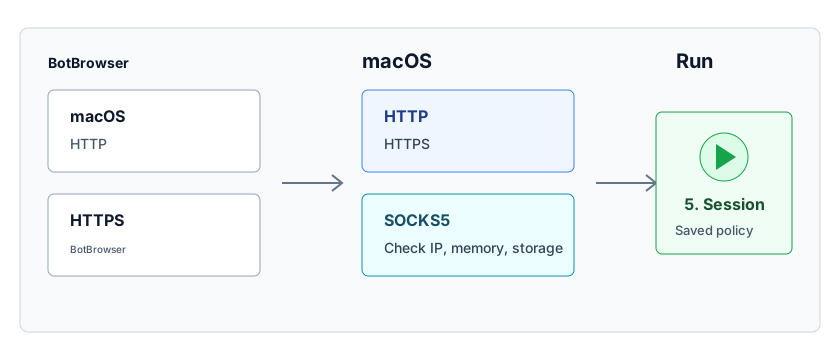
The separation is useful for small tests and larger operations. A developer can keep one Launcher profile for an interactive local check. A QA team can clone that profile for another proxy or storage policy. An operations team can group profiles by project and start several selected rows from the main table.
Install from the public repository
The Launcher directory provides setup scripts for Windows, macOS, and Ubuntu or Debian. The scripts install the supported application prerequisites, fetch the public source, build the desktop application, and create the relevant shortcuts. The current commands and platform requirements are maintained in the Launcher README.
Use the README command for your operating system instead of keeping an old copy in an internal runbook. Launcher setup changes independently from a browser profile package. Reading the current command also avoids assumptions about the required Node.js version or application location.
After installation, the left navigation contains three working areas:
- Profiles stores named launch configurations and their current state.
- Proxies stores reusable network routes.
- Kernels downloads and manages BotBrowser browser versions for the current platform.
The Profiles view is the daily starting point. Kernels and proxies are shared resources that profiles reference. This makes it possible to update one saved proxy or install one kernel without rebuilding every Launcher profile from scratch.
Select the profile before editing details
Start with the identity requirement, not with optional switches. Choose a BotBrowser profile for the required platform family, browser family, and major browser version. The selected file gives the session its profile-backed browser identity. Launcher fields then add runtime choices around that identity.
Use one profile intentionally for a persistent workspace. Keep its Launcher profile name, user data directory, and proxy assignment stable when the session is expected to retain cookies and site state. For an independent test, clone the Launcher profile or create another one with a separate user data directory. Reusing one data directory across simultaneous browser processes can produce state conflicts unrelated to fingerprint protection.
Launcher shows profile information after a valid file is selected. Review the displayed platform and version before saving. A filename may be convenient for humans, but the profile information shown in the editor is the better confirmation that the intended file was loaded.
Match the profile and kernel version
The browser kernel and BotBrowser profile should use the same browser major version. A profile created for one major release belongs with a kernel from that same release family. Major-version alignment keeps the profile identity and the browser feature surface in the same release family.
Launcher can select and manage installed kernels, and it can obtain a matching public release when one is available. The profile list shows the selected platform and kernel information, so version alignment can be checked before pressing Start.
Use this decision order:
| Question | Recommended action |
|---|---|
| Does the BotBrowser profile clearly identify a browser major version? | Install and use that major-version kernel. |
| Is the matching kernel still downloading? | Wait for the download to complete before starting the profile. |
| Is a special browser-family profile unable to select the intended kernel automatically? | Set the Chromium major version in the Advanced section. |
| Did the profile package change to another major version? | Create or review a Launcher profile for that version before use. |
| Do several saved profiles share one major version? | They can reference the same installed kernel for that platform. |
The manual kernel version field is an override, not a routine tuning value. Leave automatic selection in place for standard profiles. Use the override when the profile family requires an explicit Chromium major version or when support documentation instructs you to do so.
Do not resolve a mismatch by changing only the visible browser name, user agent, or profile label. Those fields do not convert an older profile package into a current one. Select a profile package produced for the kernel generation you intend to run.
Work with the Launcher profile editor
The editor groups profile, proxy, and runtime settings so operators can review one saved configuration before launch. Available controls can change with BotBrowser releases.
Begin with the profile identity:
- Give the Launcher profile a name that identifies its purpose.
- Add a group when several profiles belong to one project or test set.
- Keep the description operational, such as the owner, region, or validation purpose.
- Select the BotBrowser profile file and confirm its displayed details.
Next, configure only settings that the session actually requires. A profile already carries a coherent baseline. Adding overrides without a requirement increases configuration work and makes later reviews harder. Use the editor as a record of deliberate policy, not as a list of every available toggle.
The profile list supports creating, editing, cloning, importing, exporting, and grouping configurations. Clone is useful when most settings should remain identical but one dimension must change. For example, clone a baseline before assigning a different regional proxy or before comparing a profile-backed storage policy with the browser's native policy.
The editor can also be opened for a running profile. Treat saved changes as policy for the next launch unless a control explicitly states that it applies immediately. Restarting after a significant identity, network, or runtime change gives the next session a clean and reviewable start.
Find controls with editor search
Use editor search to locate profile and runtime settings without scanning the full form. Search is useful during review because it narrows navigation without changing the saved profile.
Memory, storage, and proxy settings
Choose Memory and Storage controls
Memory and storage values can become part of the browser information available to ordinary web applications. BotBrowser provides profile-backed controls so these values can follow the intended identity policy. Launcher keeps the related heap and storage policies together in the editor.
- JS Heap Size Limit controls the selected heap-size policy.
- Storage Quota controls the selected storage-capacity policy.
For most privacy-focused sessions, keep these controls aligned with the selected profile. Use host-native or custom test policy only for an authorized compatibility case with a written reason, owner, and rollback plan.
Treat the two controls as a pair during review. A heap policy and storage policy do not need to match numerically, but both should come from the same documented test requirement. Avoid trial-and-error changes on a profile that also carries persistent site state.
When comparing modes, clone the Launcher profile. Keep the BotBrowser profile, kernel, proxy, and user data policy controlled, then change only the memory and storage choice relevant to the test. The clone creates a durable record of what was intended and reduces the chance that a temporary QA setting becomes the next normal launch.
Add a proxy and use Check IP
Launcher accepts reusable proxy records and per-profile proxy assignments. The public Launcher supports HTTP, HTTPS, SOCKS4, and SOCKS5 configurations. A saved proxy can be selected in the profile editor, while quick proxy change is available from the profile list for common routing updates.
Before launching a session, use Check IP to verify the route. The result provides the observed exit IP and location information returned by the configured IP service. This is a preflight check for network configuration. It helps catch a mistyped host, an unavailable route, or an unexpected region before the browser starts.
Check IP is not a substitute for application-level validation after launch. Browser traffic can involve DNS, WebRTC, PAC rules, or site-specific routing choices that deserve their own authorized test. The preflight result simply confirms that the supplied proxy can reach the selected IP service and reports the route observed there.
Long or unavailable proxy checks can be stopped. While a check is active, the button changes to Stop. Cancel the request before editing the proxy or switching to another saved route. Launcher also cancels an active check when the proxy is cleared, which prevents an old result from being shown for a new configuration.
A practical proxy review follows this order:
- Select or enter the proxy.
- Confirm protocol, host, port, and credentials.
- Run Check IP.
- Compare the observed region with the session requirement.
- Save the proxy to the list if it will be reused.
- Reopen the saved profile, select its row, and start the browser.
Avoid putting credentials into profile names, descriptions, screenshots, or shared CSV exports. Proxy authentication belongs in the proxy fields. Restrict access to exported Launcher configurations according to your organization's credential policy.
Startup behavior and updates
Understand startup behavior
Launcher keeps profile status, browser releases, downloads, and editing controls in one desktop interface.
When a profile is started, Launcher resolves its selected BotBrowser profile, browser kernel, proxy assignment, user data location, and saved runtime settings. If a required kernel is not installed but a matching release is available, the kernel workflow can download it. Wait for the sidebar download and extraction status to finish before trying the profile again.
The main table distinguishes idle and running profiles. Start and Stop work on selected rows, which is convenient for a controlled group. Use the status column before editing shared resources. Changing or deleting a proxy record while related sessions are active can make the saved configuration differ from the browser processes that are already running.
Headed and headless browser starts have different feedback. A headed session can present user-facing guidance. A headless session reports startup guidance in terminal output because no visible browser window is available. If a headless profile does not start, inspect its process output for a missing, invalid, expired, or version-mismatched profile before changing unrelated controls.
Use one user data directory per concurrently running browser profile. Persistent directories retain cookies and site storage between launches. Temporary or separate directories provide isolation for independent work. Decide which behavior the project needs and keep the Launcher profile consistent with that decision.
Periodic Launcher and kernel updates
Launcher performs periodic update checks for the desktop application and available browser releases. Review release notes and profile compatibility before changing a maintained browser line.
Kernel updates follow browser major versions. A newer build within an installed major version can replace an older build for that major version. A new browser major version remains a separate compatibility decision because it also needs a matching BotBrowser profile package.
Periodic checks reduce maintenance work, but release control still belongs to the operator. For a production workflow:
- Keep a record of the Launcher version shown in the sidebar.
- Record the kernel version used by a validated profile set.
- Review profile package compatibility before moving to another major version.
- Run a short authorized validation after an update and before a large batch.
- Keep long-running sessions on their existing validated process until the planned restart window.
This separates routine patch maintenance from identity changes. Updating the Launcher does not make an old profile current, and downloading a new kernel major version does not create a matching profile.
A first profile and common setups
A first profile that is easy to review
The smallest useful Launcher configuration is also the easiest to support:
- Open Kernels and install the major version required by the BotBrowser profile.
- Open Profiles and choose New Profile.
- Enter a clear name and optional group.
- Select the
.encprofile and verify its platform and version. - Select a proxy only if the session requires one, then run Check IP.
- Leave optional runtime overrides at their profile defaults.
- Save, select the row, and press Start.
Once that baseline works, clone it for controlled variations. Add a persistent user data directory for a returning workspace. Add explicit Memory and Storage modes for a documented QA case. Add an automation script only after the browser starts correctly without it.
This order keeps troubleshooting local. If the baseline starts but a clone does not, the changed field is easy to identify. Starting with many overrides makes a failure harder to attribute and makes the saved profile less useful to a later reviewer.
Operating patterns
Persistent research workspace
Use one named Launcher profile, one BotBrowser profile, one proxy assignment, and one dedicated user data directory. Keep profile and kernel major versions aligned. Review updates during a planned maintenance window. This pattern preserves site state for authorized privacy research while keeping the browser identity policy stable.
Regional compatibility review
Clone the baseline for each region. Assign one reviewed proxy to each clone and use Check IP before the first start. Keep the BotBrowser profile family and kernel constant unless the test requires another platform identity. Label the region in the group or description instead of including proxy credentials.
Memory and storage QA
Create separate clones for profile, real, and documented Custom policies. Use editor search to reach the Memory and Storage section. Keep the rest of the launch configuration constant, and record which policy each clone represents. Do not reuse the custom QA clone as the normal browsing profile without review.
Small profile group
Group related Launcher profiles and select multiple idle rows for Start. Give every concurrent profile its own user data directory and review its proxy assignment. Watch the status column and sidebar while kernels or Launcher updates are active.
When Launcher is the right interface
Launcher is a good fit when operators need to inspect and reuse configurations visually. It reduces transcription mistakes in long commands, provides one place for profiles, proxies, and kernels, and makes common settings available without editing configuration files by hand.
Command-line launch remains useful for containers, remote servers, and generated workloads. Launcher is the clearer choice when operators need a visual review of saved local settings.
Teams evaluating BotBrowser should consider Launcher when these needs are important:
- Non-developer operators need to start reviewed browser profiles.
- Profile and kernel version matching should be visible before launch.
- Proxies need a quick exit-IP preflight.
- Memory and storage policies need named, repeatable configurations.
- Several local profiles need grouping, cloning, import, or export.
- Launcher and kernel maintenance should be visible in one desktop interface.
BotBrowser requires the profile package and the browser binary to share the same major version, and it reports missing, invalid, expired, or version-mismatched profiles at startup, so Launcher can keep the profile and kernel major version visibly aligned before a session starts. That lets you catch a mismatch before pressing Start instead of after a failed launch. BotBrowser cannot make an old profile package current by changing a kernel, browser name, or user agent label, and Launcher Check IP alone cannot validate DNS, WebRTC, PAC, or site-specific routing. BotBrowser also does not replace your own release control or the separate subscription profile and support terms. Review the current BotBrowser repository, pricing, and documentation for the release and service level required by your work.
Troubleshooting and launch review
Troubleshooting
The browser does not start
Confirm that the BotBrowser profile is valid and that a matching kernel major version is installed. Wait for any active kernel download to complete. For headless use, read terminal output because startup guidance cannot appear in a visible browser window.
The wrong kernel is selected
Recheck the major version displayed for the selected BotBrowser profile. Standard profiles should normally use automatic selection. Use the Advanced major-version override only for a profile family that requires it or when current support guidance calls for it.
Check IP takes too long
Press Stop, review the proxy host, port, protocol, credentials, and network availability, then retry. Cancel the old request before selecting another proxy so the result belongs to the current fields.
Search does not show a field name
Search by the concept or section keyword, such as quota, heap, proxy, fonts, or script. Search filters editor sections rather than every visible label. Clear the search to restore the full navigation.
A saved change is not visible in a running browser
Stop and restart the profile after saving changes to identity, network, memory, storage, or launch behavior. A browser process already in memory may continue with the settings used when it started.
An update is ready
Finish important work and stop managed sessions as appropriate before applying the update. After restart, confirm the Launcher version and run one short validation with the profile and kernel combination used in production.
Launch review checklist
Before a new or changed profile enters routine use, confirm:
- The BotBrowser profile comes from an authorized source.
- Its browser major version matches the selected kernel.
- The Launcher profile name and group identify the intended work.
- Concurrent profiles do not share one user data directory.
- The proxy assignment is correct and Check IP reports the expected route.
- Memory and Storage modes match the written test policy.
- Any custom memory or storage policy has an owner, reason, and rollback plan.
- Sensitive credentials are absent from names, descriptions, and exports.
- Update activity has finished before the browser starts.
- One short privacy and compatibility validation passes after material changes.
BotBrowser Launcher turns these checks into a repeatable desktop workflow. Profile identity, browser version, network route, and runtime policy stay visible as separate decisions, which makes each launch easier to review and maintain.
For deeper configuration details, continue with Profile Management, CLI Recipes, and the public Launcher README. You can also download BotBrowser or compare plans.
Practical conclusion
Use Launcher to make profile, kernel, route, and runtime choices explicit; then validate the user-visible workflow and keep a rollback path. BotBrowser coordinates these inputs but cannot promise universal compatibility or privacy outcomes.
Sources
This article is part of the guide: Browser Automation Getting Started: A First Run Map
Related Articles
BotBrowser Launcher Proxy Setup: Verify Egress IP Step by Step
Getting StartedBotBrowser Profiles: Formats, Rotation, and Common Failures
Getting StartedPlaywright with Profile-Backed Browser Identity
Getting StartedBrowser Automation Getting Started: A First Run Map
Getting StartedBrowser Automation CLI Recipes: Practical Command Examples
Getting StartedPuppeteer + BotBrowser: Launch and Profile Pitfalls
Take BotBrowser from research to production
The guides cover the model first, then move into cross-platform validation, isolated contexts, and scale-ready browser deployment.